> For the complete documentation index, see [llms.txt](https://docs.simflypad.com/v1/llms.txt). Markdown versions of documentation pages are available by appending `.md` to page URLs; this page is available as [Markdown](https://docs.simflypad.com/v1/feature-guides/stream-screens-to-simfly-pad.md).
# Stream Screens to SimFly Pad
Many panels in SimFly Pad include screen streaming functionality. For example, in the A320 panel, you can stream the PFD, ND, UPPER ECAM, and LOWER ECAM simultaneously.
## **Things to Know**
* SimFly Linker uses the pop-out window mechanisms in MSFS and X-Plane together with Windows window capture to stream content such as the PFD and ND to SimFly Pad. Since there is currently no automatic pop-out mechanism, you need to manually pop out the target window during setup.
* If you are using MSFS 2024, you can also enable [MSFS Direct Capture](#dx12-direct-capture) — supported screens are captured directly from the simulator, with no pop-out window required.
* If you are using X-Plane 12, you can enable [X-Plane Direct Capture](#x-plane-direct-capture) — screens of supported aircraft (currently ToLiss A319/A320/A321, A330-900, A340-600 and FlightFactor 757/767) are read directly from the aircraft's panel texture, with no pop-out window required.
## **Steps**
1. On the Cockpit page of SimFly Pad, click “Connect” in the upper left corner. Select the screen you want to stream and click the “Connect” button in the middle of the screen. When the screen prompts “Waiting for the window to be popup,” proceed to the next step.
2. After SimFly Pad prompts “Waiting for the window to pop up,” switch to MSFS. Hold down the right ALT key, move your mouse over the screen you want to stream, and click the left mouse button. (When you move the mouse over it, the cursor changes to a magnifying glass icon. If holding the right ALT key still does not let you click to pop out the window, see the setup blockers below.)
3. After clicking the left mouse button, the corresponding game screen will briefly appear as a pop-up window. Wait a moment, and SimFlyPad will automatically hide this window and start transmitting the image data.
## MSFS Direct Capture (Alpha)
Starting from SimFly Linker 4.7.1, if you fly in Microsoft Flight Simulator 2024, you can enable **MSFS Direct Capture**. Instead of capturing a pop-out window, this mode captures the cockpit display images directly from the simulator's DX12 rendered textures:
* Supported screens start streaming right away — no pop-out window is required.
* Touch-enabled screens (such as the EFB) can be controlled directly, without installing a virtual monitor.
* Streaming is faster and more reliable than the pop-out window capture, and it avoids the frame-rate cost of pop-out windows.
### Requirements
* SimFly Linker 4.7.1 or later. (4.8.0 or later is recommended: it adds the MSFS 2024 built-in EFB and fixes corrupted green video on some devices.)
* Microsoft Flight Simulator 2024, running in **DirectX 12** rendering mode (check the in-game graphics settings). If MSFS is running in DX11 mode, streams automatically fall back to the legacy pop-out window capture.
* MSFS 2020 and X-Plane are not supported. With the option enabled, they automatically continue to use the legacy pop-out window capture. (For X-Plane 12, see [X-Plane Direct Capture](#x-plane-direct-capture) below.)
### Where to enable it
Both direct capture options live on the **Settings** page of SimFly Linker: scroll down to the **Streaming** section, below **Capture Window Titles**. Each option has its own card with an **ALPHA** badge and a badge showing the simulator it applies to (**MSFS 2024** or **X-PLANE 12**).
Settings page → Streaming section: the MSFS Direct Capture and X-Plane Direct Capture cards.
### Enable MSFS Direct Capture
1. On the **MSFS Direct Capture** card, check **Enable**, read the experimental feature notice, and confirm.
2. (Optional) Adjust **Max FPS** (30 or 45; the default is 30). The actual frame rate never exceeds the current render frame rate of MSFS.
3. (Optional) Turn on **Synchronized copy (reduces flicker)** if the streamed panels occasionally show tearing, flicker, or small black blocks. In this mode captures are synchronized with MSFS's render queue at a fixed 30 FPS with slightly higher GPU load, and the **Max FPS** selector is locked at 30. Leave it off (default) for the lowest possible impact on MSFS performance.
You do not need to restart SimFly Linker after changing these options. Screens that are already streaming keep their current mode and settings — reconnect them from SimFly Pad to apply the change.
{% hint style="warning" %}
MSFS Direct Capture is an experimental (Alpha) feature. It is still in testing and may affect MSFS stability — in rare cases it can even cause the game to crash to desktop (CTD). If you run into problems, simply uncheck **Enable** to return to the legacy pop-out window capture mode.
{% endhint %}
### Supported Aircraft and Screens
Only some aircraft screens can be captured directly. Click **View list** on the **MSFS Direct Capture** card to open the **MSFS Direct Capture - Supported Panels** dialog — the number next to the link is how many screens your installed version supports, and this in-app list is the authoritative reference. The name in brackets after each screen is the aircraft add-on it applies to (for example `fenix`, `fbw`, `fsl`).
Screens that are not in the list automatically fall back to the legacy pop-out window capture mode, so you still need to pop out those windows manually as described in the Steps above.
If your aircraft or screen is not in the list, or a supported screen does not stream correctly after enabling this feature, please contact us and let us know the aircraft and panel.
### Known issues and limitations
* **SimFly Pad still says "Waiting for the window to pop up".** This means the stream has fallen back to pop-out window capture. Check that you are running MSFS 2024 in DX12 mode and that the screen is in the **MSFS Direct Capture - Supported Panels** list, then disconnect and reconnect the screen from SimFly Pad. (Screens already streaming when you turned the option on keep using the old mode until reconnected.)
* **Warning when clicking START: "a resource MSFS Direct Capture needs is occupied by another program".** A third-party program (usually left over from the previous MSFS session) is holding a resource that glass cockpit capture needs, so panels may fail to be captured. Close the program listed in the message. If the message says it is a zombie process, restart the PC.
* **Occasional flicker, tearing, or small black blocks on the streamed panel.** Turn on **Synchronized copy (reduces flicker)**.
* **Green or corrupted video.** This was fixed in SimFly Linker 4.8.0 — please update.
* **Some screens only exist in direct capture mode.** For example, the MSFS 2024 built-in EFB has no pop-out window. These screens cannot stream when MSFS Direct Capture is disabled or MSFS runs in DX11 mode.
* **MSFS crashes to desktop after enabling the feature.** Uncheck **Enable** and contact us with the aircraft and panel information.
## X-Plane Direct Capture (Alpha)
Starting from SimFly Linker 4.8.2, if you fly in X-Plane 12, you can enable **X-Plane Direct Capture**. Through the SimFly XPConnector plugin, the cockpit screens of supported aircraft are read directly from the aircraft's panel texture inside X-Plane:
* Supported screens start streaming right away — no pop-out window is required, and no extra windows means no frame-rate cost.
* Lower latency than pop-out window capture, with a capture rate of up to 60 FPS.
* Because no windows are popped out, the ToLiss "one of several popped-out screens is black" issue described in [Streaming Screen Issues](/v1/troubleshooting/streaming-screen-issues.md) no longer applies.
### Requirements
* SimFly Linker 4.8.2 or later.
* X-Plane 12.
* SimFly XPConnector plugin **0.9.0 or later**. SimFly Linker installs and upgrades the plugin from the **Cockpit Controls (X-Plane)** page — if it prompts you to upgrade, do so and then restart X-Plane.
* A supported aircraft. Currently:
| Aircraft | Screens captured directly |
| ------------------------- | ------------------------------------------------------------------------------------------------------------ |
| ToLiss A319 / A320 / A321 | PFD and ND (captain and first officer), upper ECAM (E/WD), lower ECAM (SD), MCDU 1 / MCDU 2 |
| ToLiss A330-900 | PFD and ND (captain and first officer), upper ECAM (E/WD), lower ECAM (SD), MCDU 1 / MCDU 2 |
| ToLiss A340-600 | PFD and ND (captain and first officer), upper ECAM (E/WD), lower ECAM (SD), MCDU 1 / MCDU 2 |
| FlightFactor 757 / 767 | PFD and ND (captain and first officer), EADI / EHSI (original cockpit), upper and lower EICAS, CDU 1 / CDU 2 |
Touch-enabled screens (such as the EFB and the ToLiss ISCS), the ISIS, and any aircraft not listed here continue to use the legacy pop-out window capture — including the virtual monitor requirement for touch screens.
### Enable X-Plane Direct Capture
1. Open the **Settings** page in SimFly Linker, scroll down to the **Streaming** section and find the **X-Plane Direct Capture** card.
2. Check **Enable**, read the experimental feature notice, and confirm.
3. (Optional) Adjust **Max FPS** (30, 45, or 60; the default is 45). Higher rates reduce latency but use more CPU; the actual rate never exceeds X-Plane's render frame rate. This setting takes effect immediately, including on streams that are already running.
You do not need to restart SimFly Linker or X-Plane after changing the option. Screens that are already streaming keep their current mode — reconnect them from SimFly Pad to apply the change.
{% hint style="warning" %}
X-Plane Direct Capture is an experimental (Alpha) feature. If the image looks wrong or a stream fails to start, uncheck **Enable** to return to the legacy pop-out window capture mode, and contact us with the aircraft and panel information.
{% endhint %}
### Known issues and limitations
* **SimFly Pad still says "Waiting for the window to pop up".** This means the stream has fallen back to pop-out window capture. Check that **Enable** is checked, that the XPConnector plugin is 0.9.0 or later and X-Plane has been restarted after the upgrade, and that the aircraft is in the table above. Then disconnect and reconnect the screen from SimFly Pad.
* **Connecting right after loading into the cockpit.** The plugin publishes the screens a moment after the cockpit finishes loading. SimFly Linker waits a few seconds for it, but if you connect too early the stream may still fall back to pop-out capture — simply reconnect the screen.
* **Image frozen after switching aircraft.** If you change aircraft while a screen is streaming, the stream may stay on the last frame. Disconnect and reconnect the screen from SimFly Pad.
* **Black or dark image.** Direct capture shows exactly what the aircraft draws on its display. If the display unit is powered off, or its brightness knob is turned all the way down, the stream is black or dark as well.
* **FlightFactor 757 / 767 cockpit variants.** The original (EADI / EHSI) and upgraded (large PFD / ND) cockpits are both supported, but only the variant currently selected in the aircraft renders an image — choose the matching panel in SimFly Pad.
* **Updating the plugin requires restarting X-Plane.** The new plugin only takes effect the next time X-Plane starts.
## **Install Virtual Monitor Driver \[Optional]**
SimFly Pad not only supports displaying pop-out windows from the simulator, but for many touch-enabled windows—such as the B777’s MFD and the EFB—you can also directly control them with touch gestures in SimFly Pad.
However, due to technical reasons, this feature requires you to install a virtual display monitor. You can go to the Tools page in SimFlyLinker and click **Install Driver** to install the virtual display driver. Once the driver is installed, you can click the Add button below to add a virtual display.
{% hint style="success" %}
The virtual display will automatically reset after you restart your system.
{% endhint %}
{% hint style="success" %}
By default, SimFlyLinker uses **usbmmid\_v2** as the virtual display driver solution. In addition, SimFly Linker also supports the [**VDD**](/v1/feature-guides/stream-screens-to-simfly-pad/use-vdd-as-virtual-monitor.md) solution. Please refer to this document for more information.
{% endhint %}
### Use an Existing Monitor as a Virtual Display
If you do not want to install a virtual display driver, or you simply prefer another setup, you can choose one of your existing monitors and use it as the virtual display instead, as shown below.
### Use with MSFS Pop Out Panel Manager
MSFS Pop Out Panel Manager and SimFly Linker may both try to adjust window positions in some cases. When used together, this can cause conflicts and lead to window position issues, such as SimFly Linker crashing or the streamed screen turning black.
You can go to the Settings page in SimFly Linker and set **Pop Out Window Location** to **"Don't Hide"**.
## Customize Capture Window Titles
If a panel still does not start streaming after its pop-out window is already visible, the aircraft may be using a window title that is different from SimFly Linker's built-in capture list. In that case, you can add an extra capture title in the Settings page.
1. Open the Settings page in SimFly Linker, then open **Edit Titles -> Advanced Streaming Settings**.
2. In **Simulator**, choose **MSFS** or **X-Plane**, then select the corresponding **Profile**.
3. In **Capture List**, click **Add** and enter the exact title shown on the pop-out window.
4. Try streaming again. New titles are applied immediately to windows that are still waiting to be found.
{% hint style="info" %}
Built-in titles are read-only. Only the titles you add yourself can be deleted. The capture title lists for MSFS and X-Plane are stored separately, even for the same Profile.
{% endhint %}
## Setup blockers
### **\[MSFS] Cannot pop out the window**
> **When press the right ALT key and move the mouse over the corresponding screen, the mouse icon does not change.**
This may be because you have accidentally changed the binding of the right ALT key. You can go to the Control Settings in MSFS, search for “NEW UI WINDOW MODE,” and rebind it.
### **Error: "Please add a virtual monitor first."**
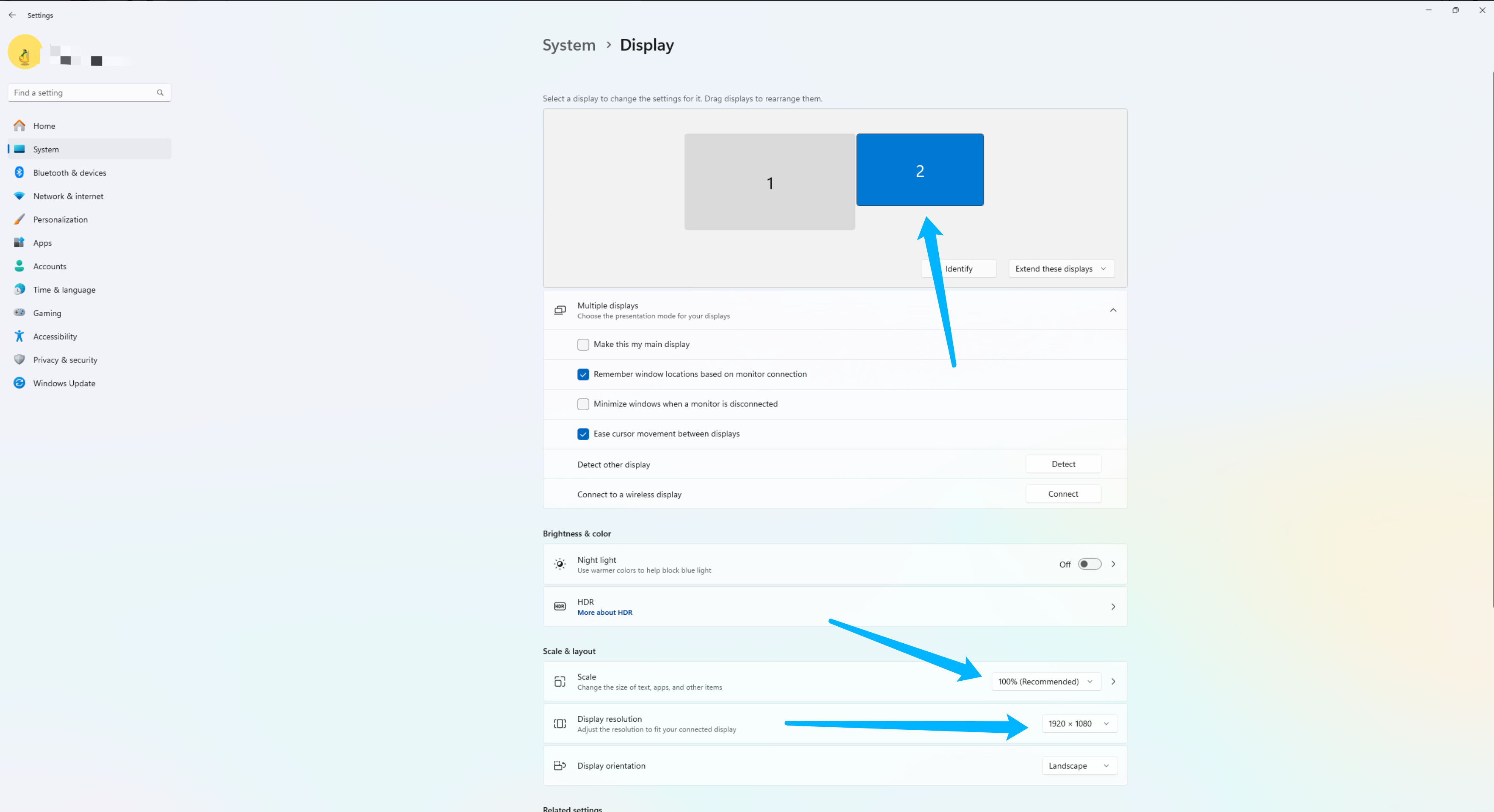
This is because you are attempting to stream a screen that supports touch controls, such as the B787’s MFD or the A320’s EFB. Before streaming these screens, you need to add a virtual monitor in SimFlyLinker. You can follow these steps:
1. Relaunch SimFlyLinker as an administrator, go to the *Tools* page, and click *Install* to install the Virtual Monitor driver.
2. Click the *Add* button below to add a virtual monitor.
3. (Optional) Open *This PC* and go to Display Settings to ensure that the newly added virtual monitor’s resolution is set to 1920x1080 with a 100% scaling ratio, as shown in the image below.
## More troubleshooting
If streaming already starts but the image turns black, shows “unstable network” or “FPS: 0.”, becomes unstable after 1-3 minutes, or feels laggy, see:
{% content-ref url="/pages/UazALnsWrjSBAtEvkCqC" %}
[Streaming Screen Issues](/v1/troubleshooting/streaming-screen-issues.md)
{% endcontent-ref %}