> For the complete documentation index, see [llms.txt](https://docs.simflypad.com/v1/llms.txt). Markdown versions of documentation pages are available by appending `.md` to page URLs; this page is available as [Markdown](https://docs.simflypad.com/v1/getting-started/using-the-cockpit-control-feature.md).
# Using the Cockpit Control Feature
One of the core features of SimFly Pad is to help you control your flight simulation directly on your mobile device. This article primarily describes how to perform the initial configuration.
## **Introduction**
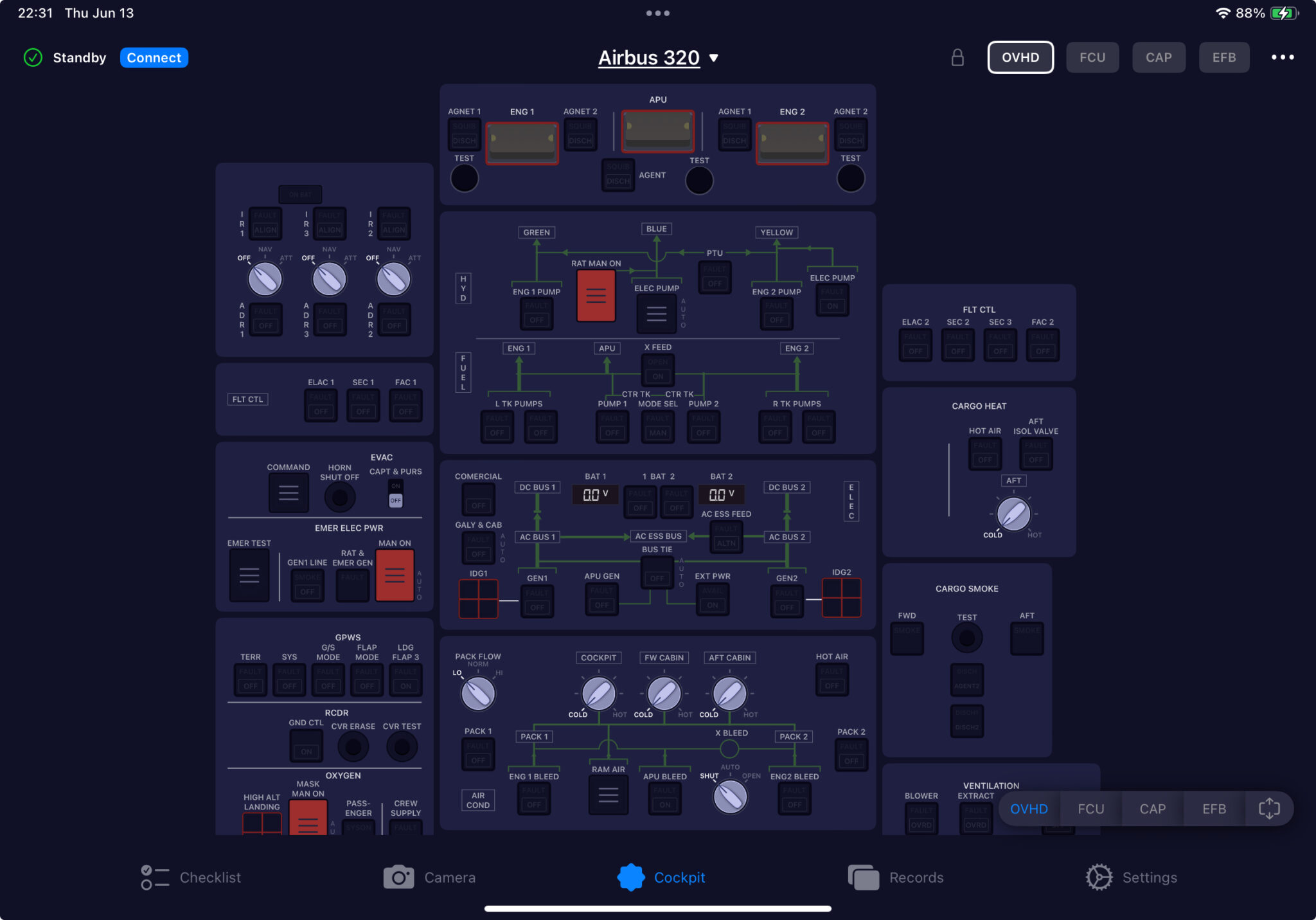
The Cockpit Controls feature is a very useful functionality of SimFly Pad. It allows you to view and control various aspects of your aircraft directly from your mobile device through the beautifully designed panels built into SimFly Pad. All your actions, such as button switches and AP value adjustments in the game and SimFly Pad, will be nearly real-time bidirectional synchronized.
Additionally, with SimFly Pad’s powerful remote streaming capabilities, you can easily use your tablet device as a remote screen, streaming displays like the PFD/ND from your aircraft.
## **Setup Guide**
Before using the Cockpit Controls feature, please ensure that the network connection between SimFly Pad and SimFly Linker is working properly. If you encounter any issues, please refer to the [troubleshooting guide](/v1/troubleshooting/connection.md).
### Step 1: Check Community/Plugins Folder
{% tabs %}
{% tab title="MSFS2020/MSFS2024" %}
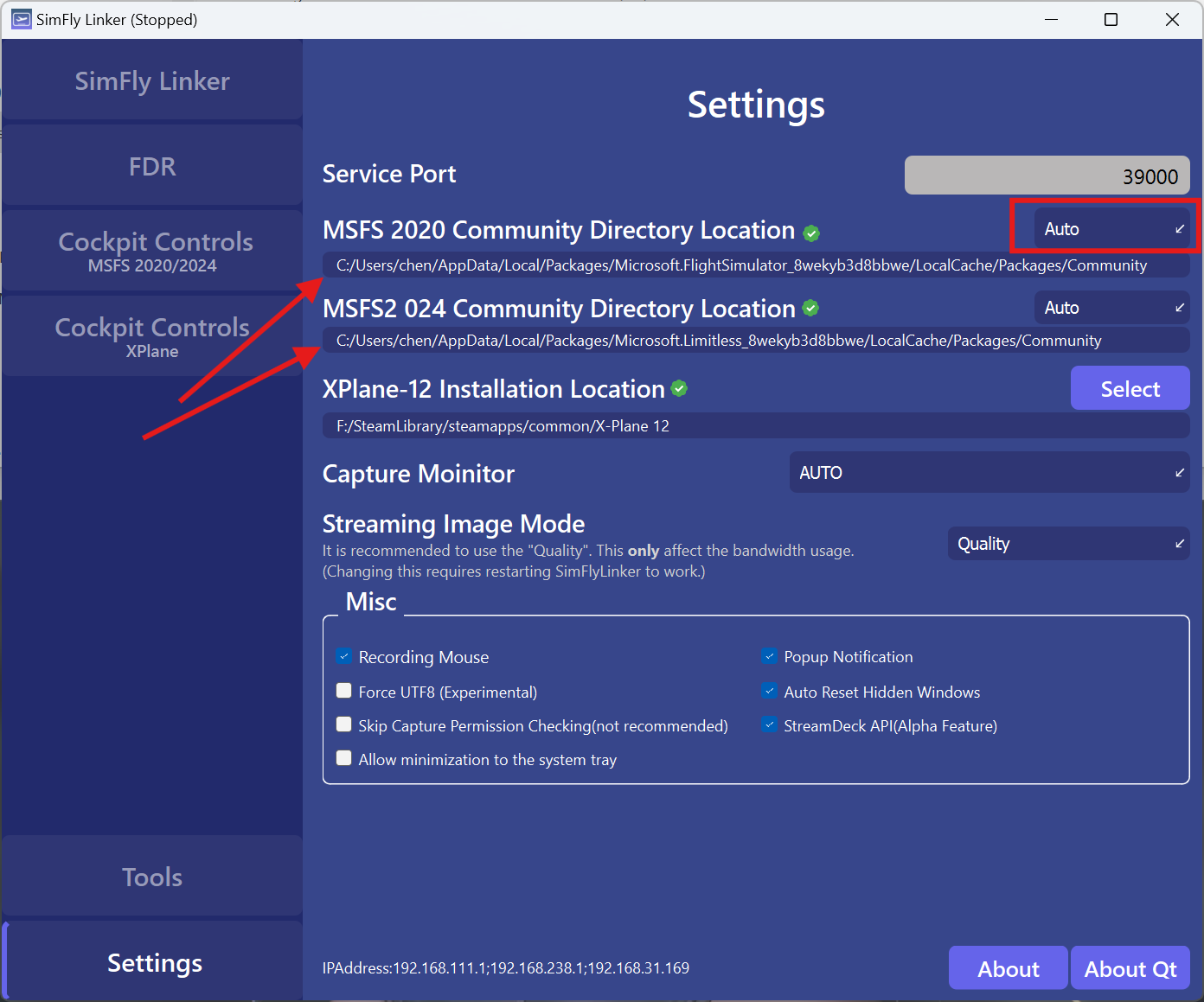
On your PC, start SimFly Linker, go to the "Settings" page. Check if the path below "MSFS 2020/2024 Community Directory Location" correctly identifies your community folder path. If not, you can select "Steam" or "Store" from the dropdown menu on the right. If it still doesn't work, you can choose "Manual" and manually specify your community folder.
{% endtab %}
{% tab title="X-Plane12" %}
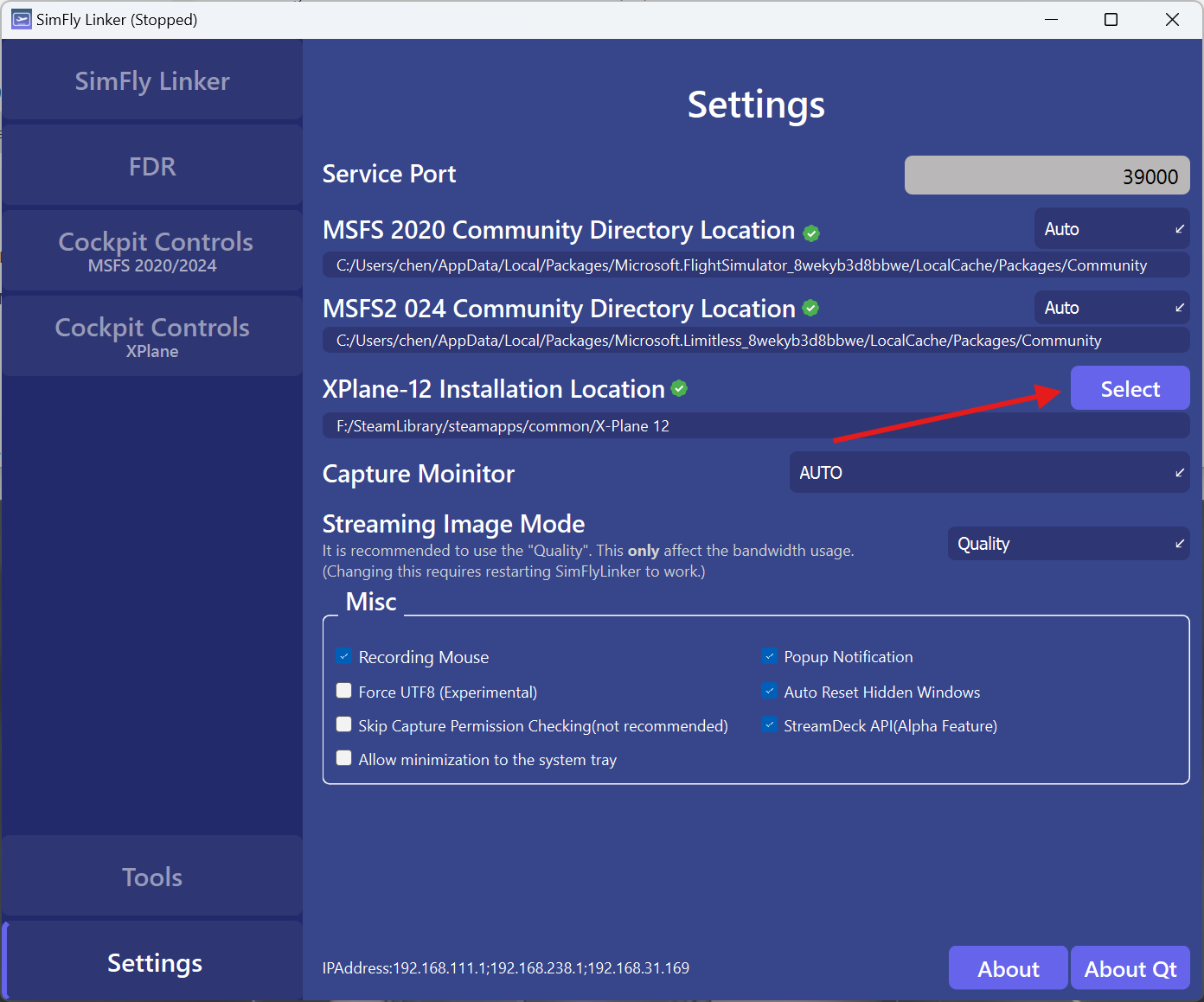
On your PC, start SimFly Linker, go to the "Settings" page. Click the "Select" button on the right, and in the dialog box that appears, choose your X-Plane 12 installation directory (the directory where the `X-Plane12.exe` file is located).
{% endtab %}
{% endtabs %}
### **Step 2: Install the Core Plugin**
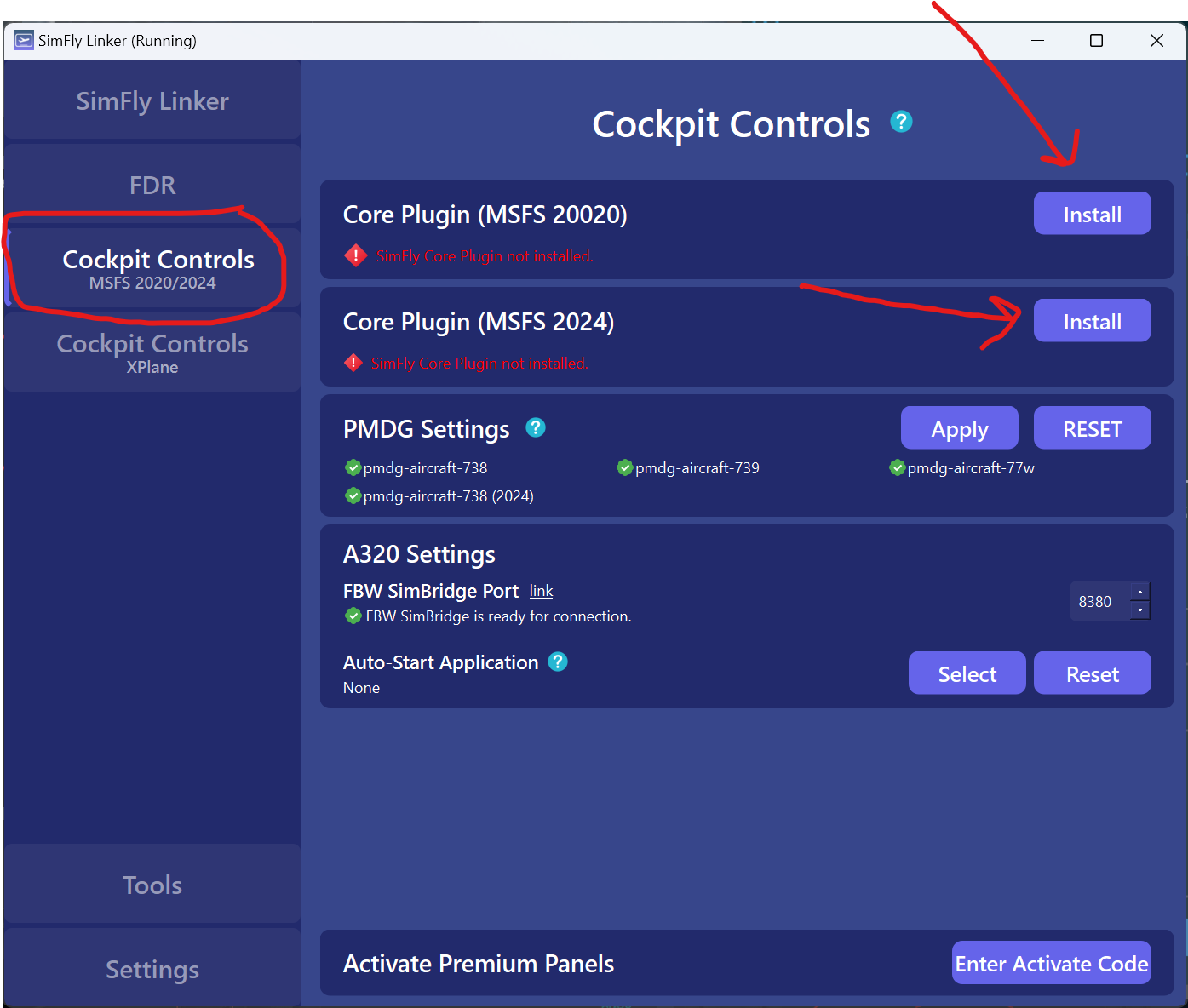
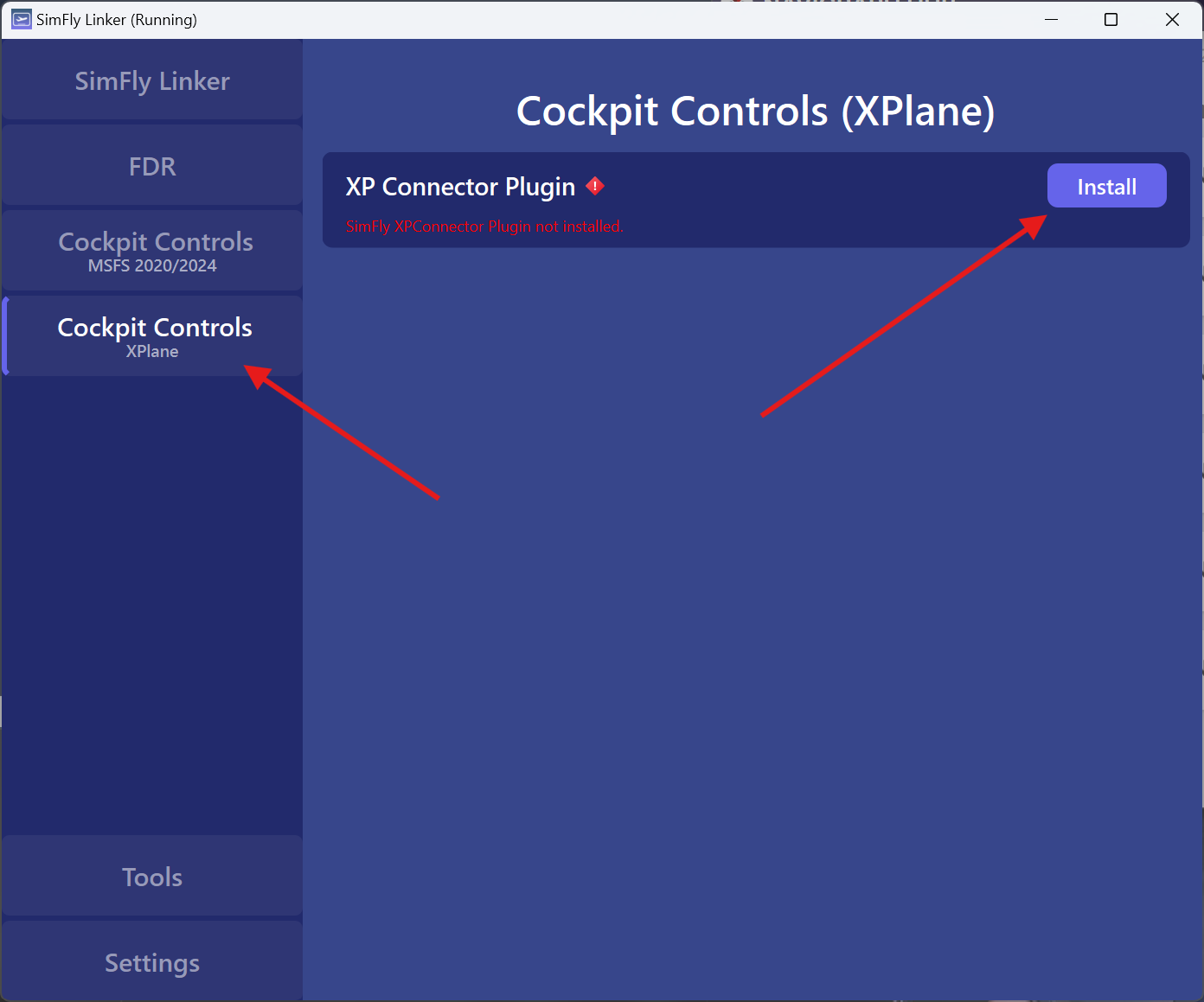
Go to the “Cockpit Controls” page of SimFly Linker, and click the Install button on the right side of the Core Plugin section.
{% tabs %}
{% tab title="MSFS2020/MSFS2024" %}
{% endtab %}
{% tab title="X-Plane12" %}
{% endtab %}
{% endtabs %}
Please note that the above methods have not been officially verified, but according to user feedback, they can work. If you really need to run SimFly Linker in XP11, you may follow the steps above as a reference.
### **Step 3: Start SimFly Linker Service**
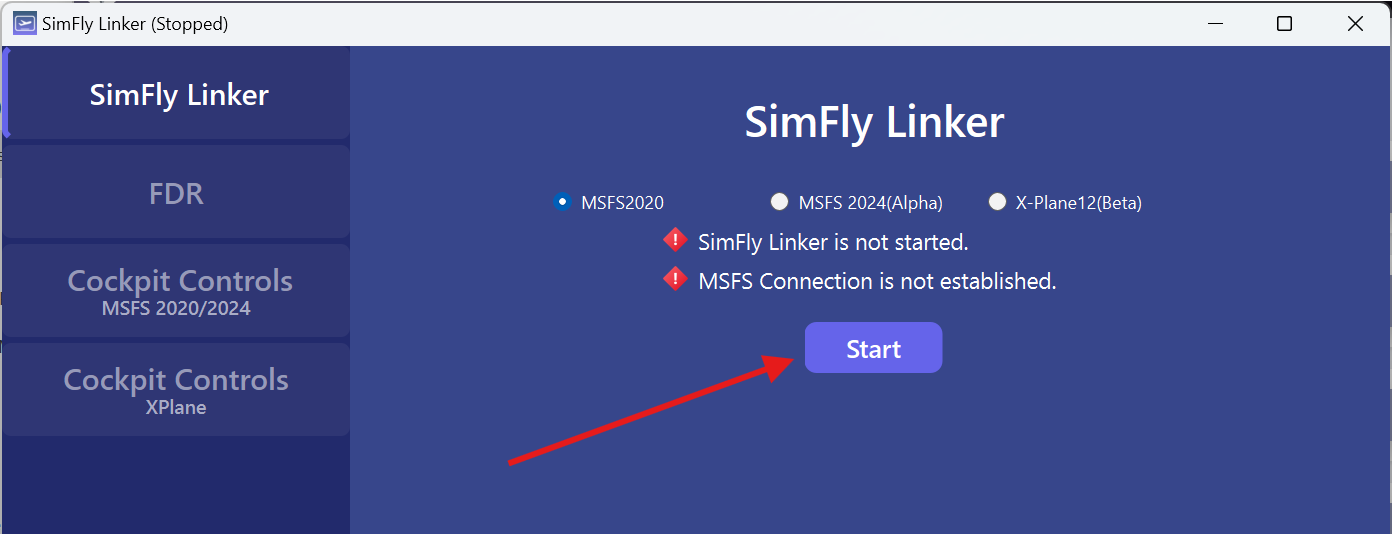
On the SimFly Linker homepage, click the **Start** button.
You need to select the mode based on your game: MSFS 2020, MSFS 2024, or X-Plane.
### **Step 4: Connect**
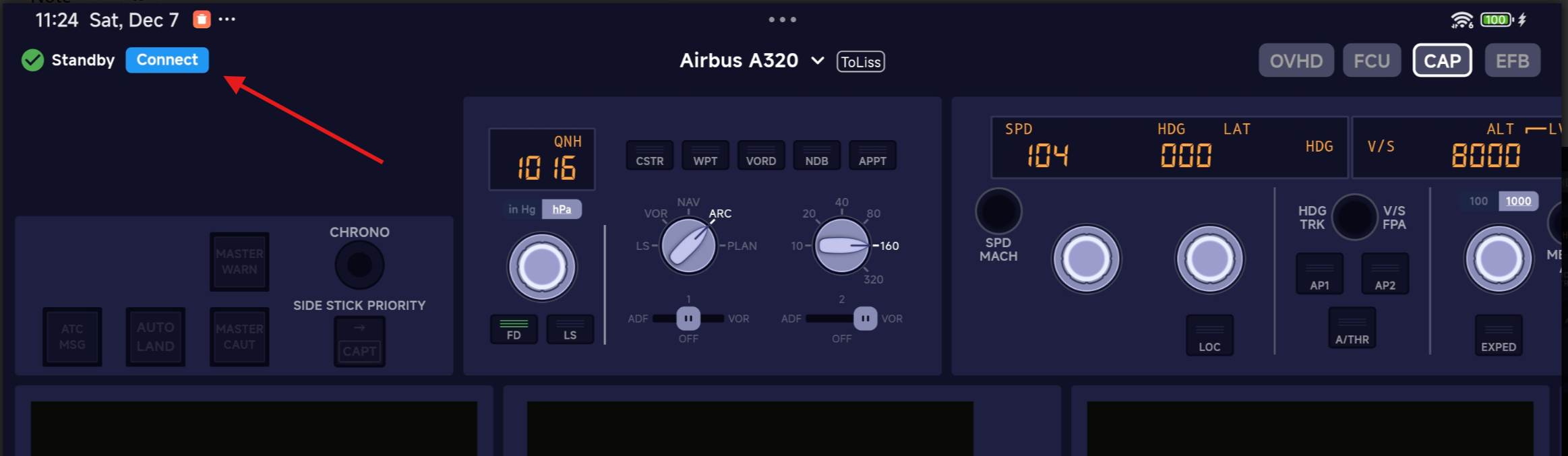
On the Cockpit page of SimFly Pad, select the panel you want to use, then click the “Connect” button at the top left to start using it.
{% hint style="warning" %}
If you do not see the "Connect" button here, there may be an issue with the connection between SimFlyPad and SimFlyLinker. Please refer to [Connection Troubleshooting Guide](/v1/troubleshooting/connection.md) for troubleshooting.
{% endhint %}
{% hint style="info" %}
Some panels require activation, you can unlock those by In-App purchase or through an activation code which can be purchased from simmarket.com .
{% endhint %}
{% hint style="info" %}
Some aircraft models, such as PMDG B737 and FBW A320, require additional configuration in SimFly Linker. Please refer to [this article](/v1/feature-guides/initialize-configuration-for-premium-panels.md) for detailed instructions.
{% endhint %}
### Streaming the Pop-out windows to SimFly Pad
SimFly Linker supports streaming pop-out windows from the simulator (such as PFD, ND) to SimFly Pad. You can refer to the [this document](/v1/feature-guides/stream-screens-to-simfly-pad.md) for instructions.
### FAQs
Please refer to this [link](mailto:undefined) to learn more.
### About X-Plane 11
SimFly Linker does not officially support XP11 at the moment. However, since the X-Plane SDK we use is compatible with XP11, you may try configuring it using one of the following methods:
1. When selecting the X-Plane 12 installation directory as described above, instead of choosing the XP12 directory, you can directly select the XP11 installation directory.
2. Open the SimFlyLinker installation folder, locate the *plugins* directory, and copy the folder *seeingsky-simfly-xpconnector* into the *plugins* directory of your XP11 installation.