> For the complete documentation index, see [llms.txt](https://docs.simflypad.com/v1/llms.txt). Markdown versions of documentation pages are available by appending `.md` to page URLs; this page is available as [Markdown](https://docs.simflypad.com/v1/feature-guides/initialize-configuration-for-premium-panels.md).
# Initialize Configuration for Premium Panels
For most add-ons, no additional configuration is needed. This document mainly describes the panels that require extra configuration.
## PMDG B737/B777
#### **Enable PMDG Data Broadcast**
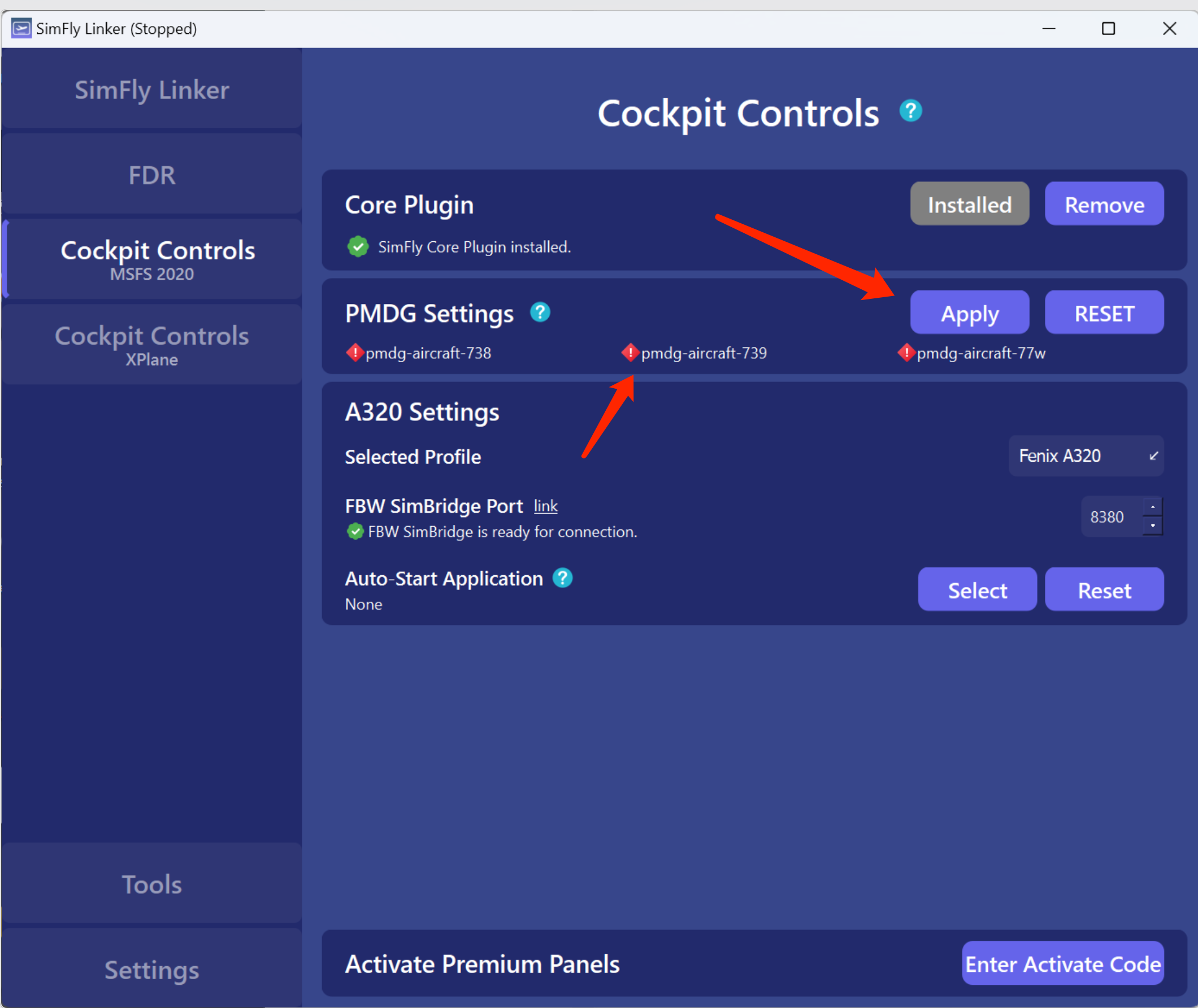
By default, the data broadcast service of PMDG B737/B777 model is not enabled, which means the SimFlyLinker cannot get the CDU display content. You can enable it by following these steps:
* (Ensure you have run the PMDG 737/777 model at least once)
* Close the MSFS game. Go to the Cockpit Controls page in SimFly Linker and click the “Apply” button next to PMDG Settings. Your installed PMDG 737/777 models will be displayed below, and a green check mark indicates the configuration has been successfully modified.
#### Configuring Landing Lights (optional)
In PMDG B737 CDU, you can switch the type of Landing Lights. When you switch, the B737 panel in the SimFly Pad will not automatically follow the switch. You need to make the corresponding changes on the “Cockpit Controls Settings” page of SimFly Pad.
## iFly B737 Max
No additional configuration is required. **Please note** that if your iFly Plugin Manager is launched with administrator privileges, you will also need to run SimFly Linker in administrator mode.
{% hint style="warning" %}
If your SimFlyPad can correctly see the various button states, but the simulator doesn’t respond when operated on SimFly Pad, it’s most likely because your iFly Manager was launched as an administrator, while SimFly Linker was not. In this case, you need to restart SimFly Linker as an administrator.
{% endhint %}
## FBW A320
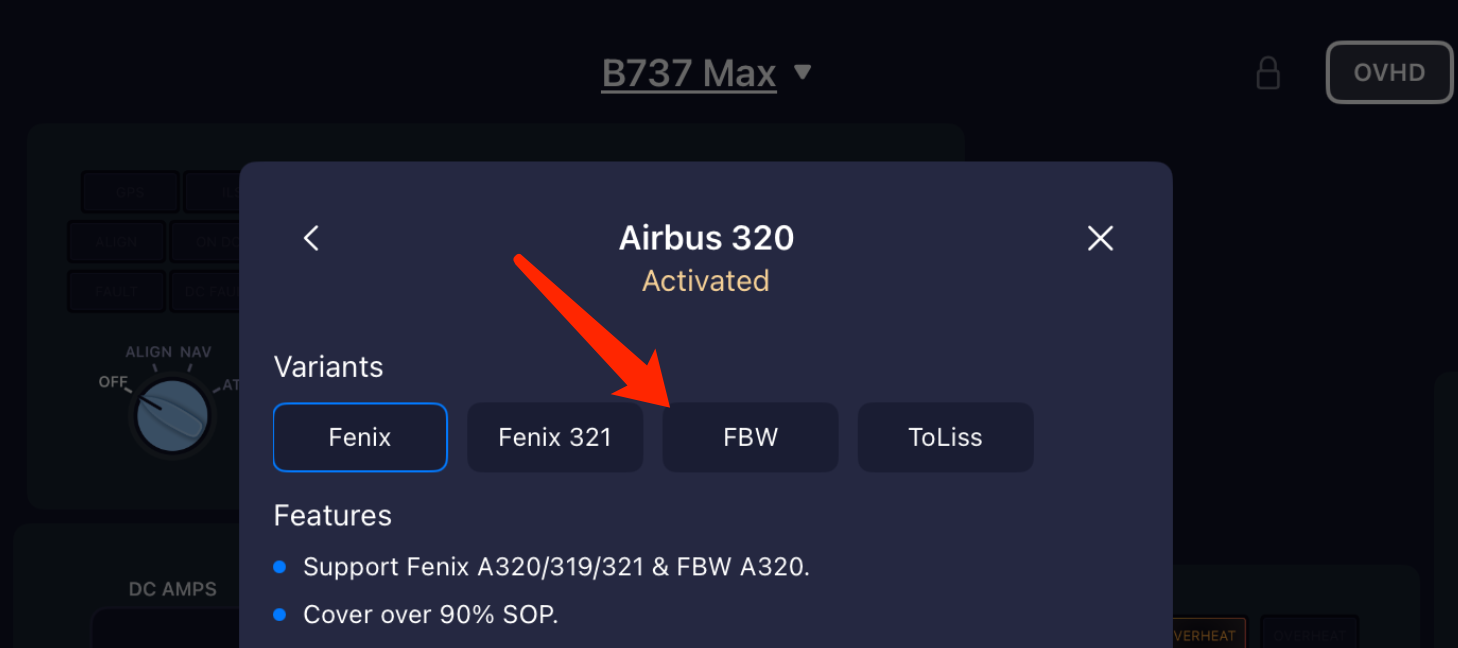
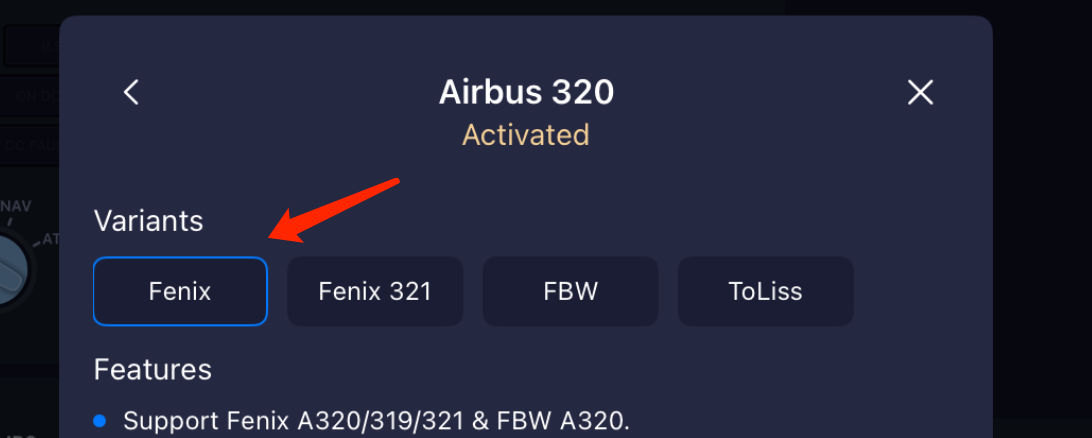
#### Switch the panel variant to "FBW" on SimFly Pad
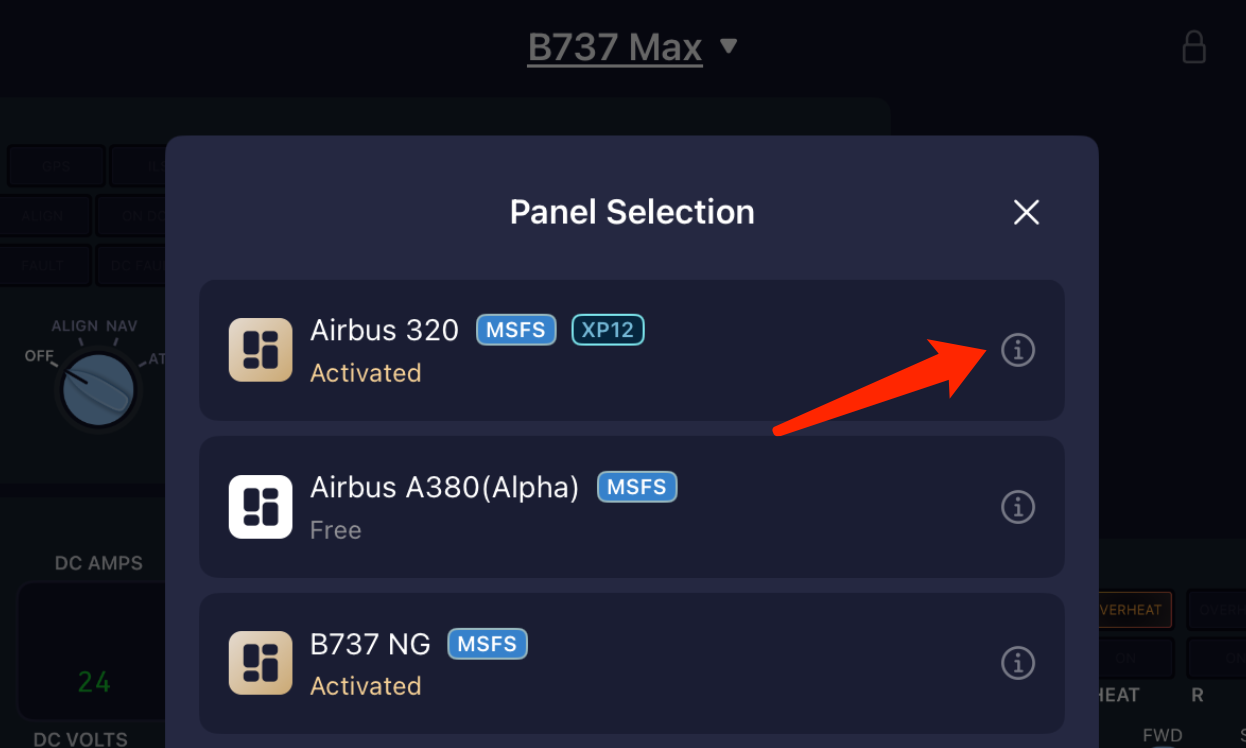
* On Profile Selection dialog in SimFly Pad, click the INFO icon and enter the "Profile Detail" page.
* Select the "Variant" to "FBW".
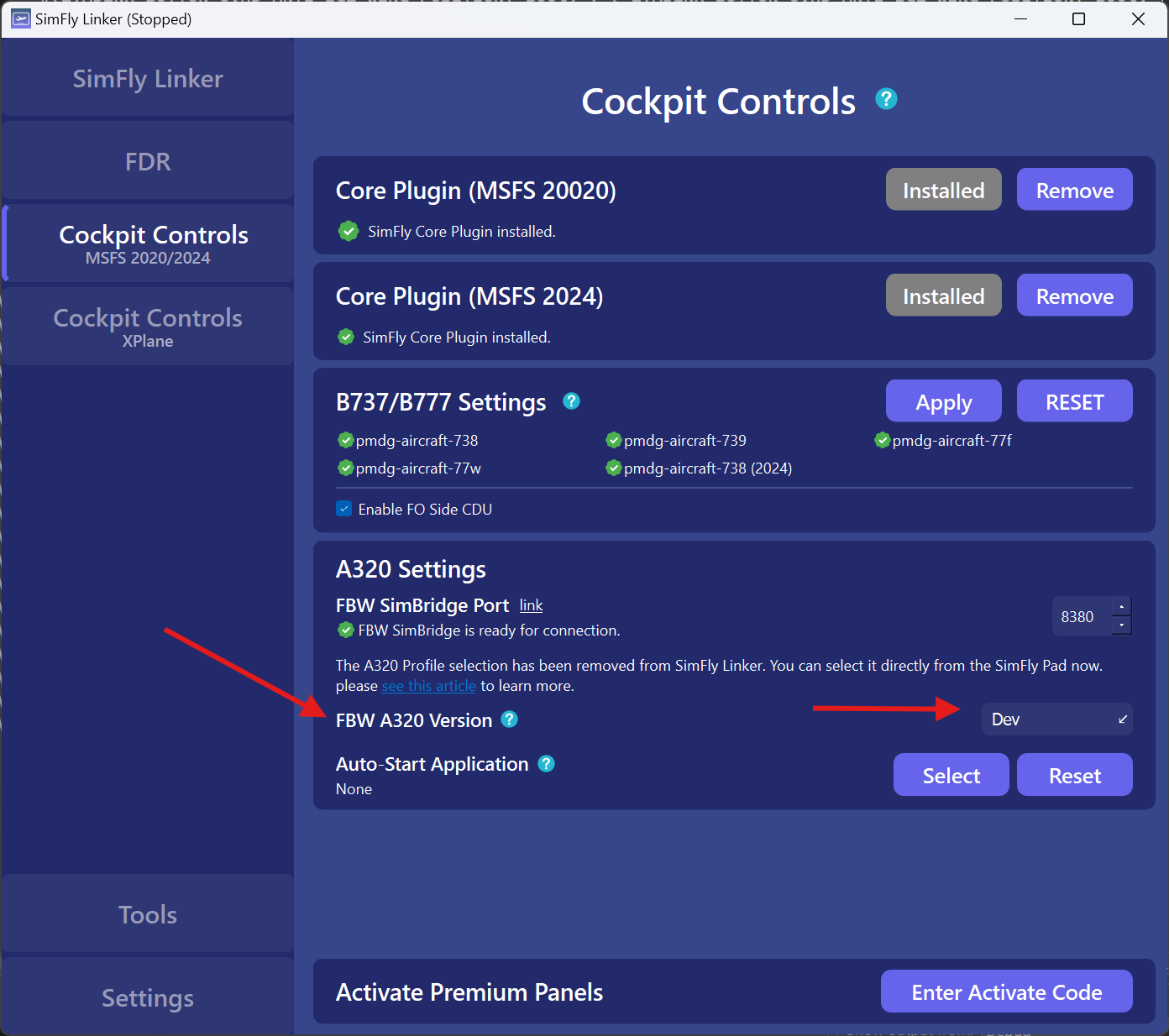
#### Select the Dev or Stable Version
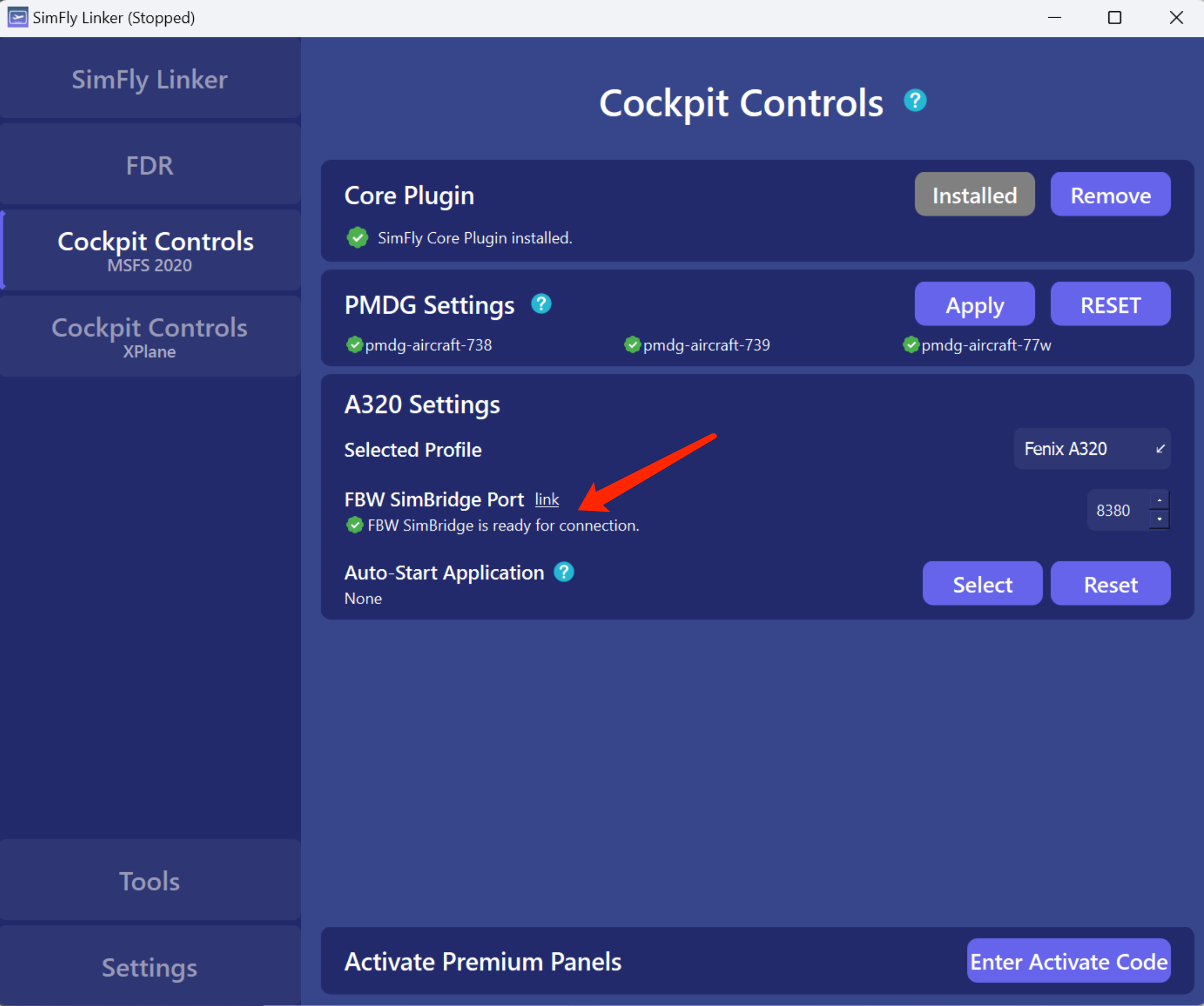
FBW team provides both DEV and STABLE versions. You can switch to the version you want on the following SimFlyLin ker page.
> Please note that the FBW Dev version is updated very frequently, so if you encounter any issues, feel free to contact us.
#### Enabling SimBridge Service
To obtain MCDU data for FBW, you will need to install the official FBW SimBridge software. After installing, it is recommended to configure SimBridge to run automatically. More information can be found here:
#### Check if SimFlyLinker successfully recognizes SimBridge.
Open SimFlyLinker, switch to the Cockpit Controls page, and confirm that “OK” is displayed below FBW SimBridge.
## Fenix A320
#### Switch the panel variant to "Fenix" on SimFly Pad
* On Profile Selection dialog in SimFly Pad, click the INFO icon and enter the "Profile Detail" page.
* Select the "Variant" to "Fenix".
## ToLiss A320/A330
In SimFlyLinker, no additional configuration is required for Toliss. However, if you wish to use the streaming feature, such as streaming PFD/ND content to display on SimFlyPad, you need to configure X-Plane 12 as follows.
### Enable Popout
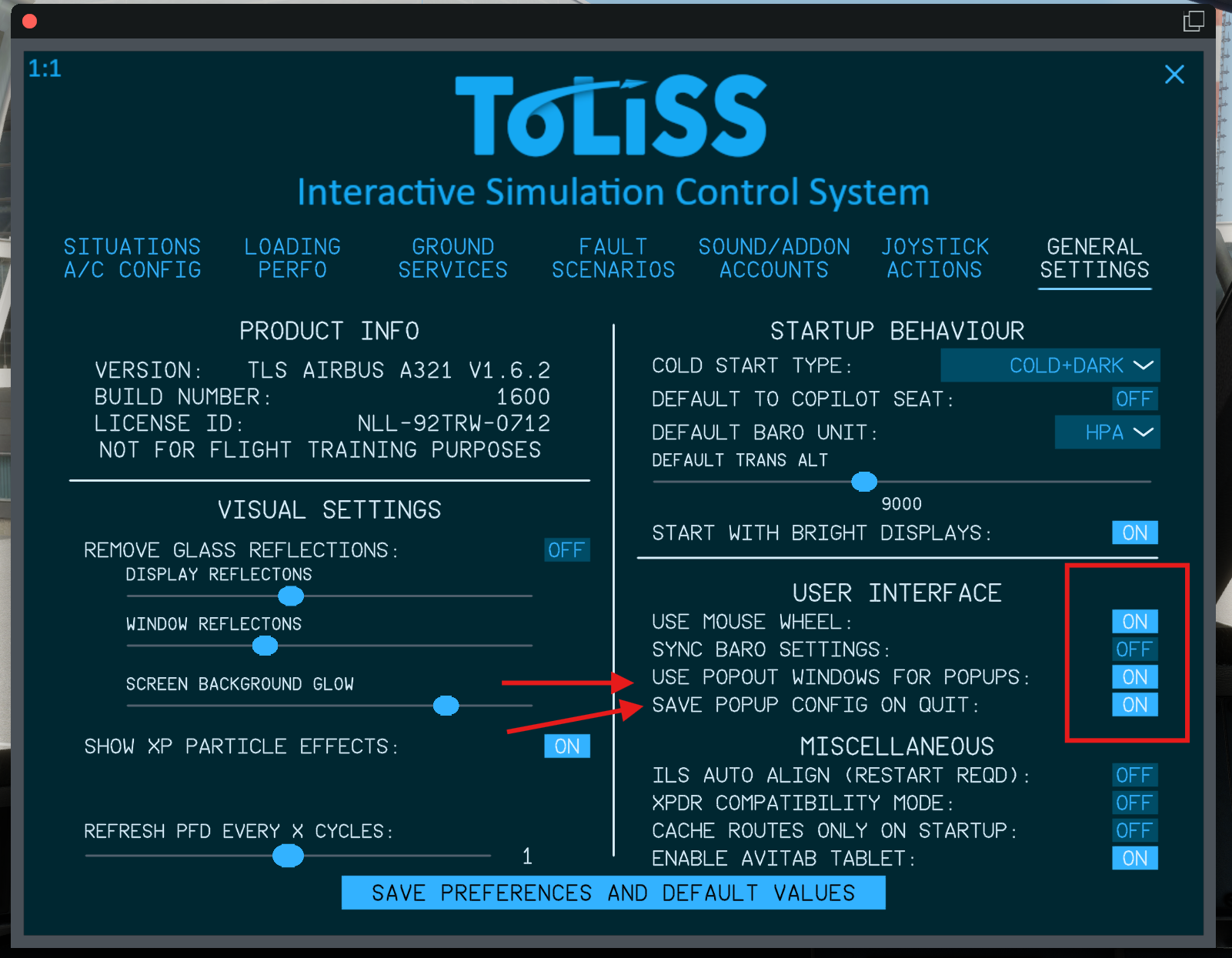
1. Open XPlane 12, start a flight, and then select **Plugins -> ToLiss -> Open ISCS Screen**.
2. Switch to "GENERAL SETTINGS" tab, Enable "**USE POPOUT WINDOWS FOR POPUPS**" and "**SAVE POPUP CONFIG ON QUIT**".
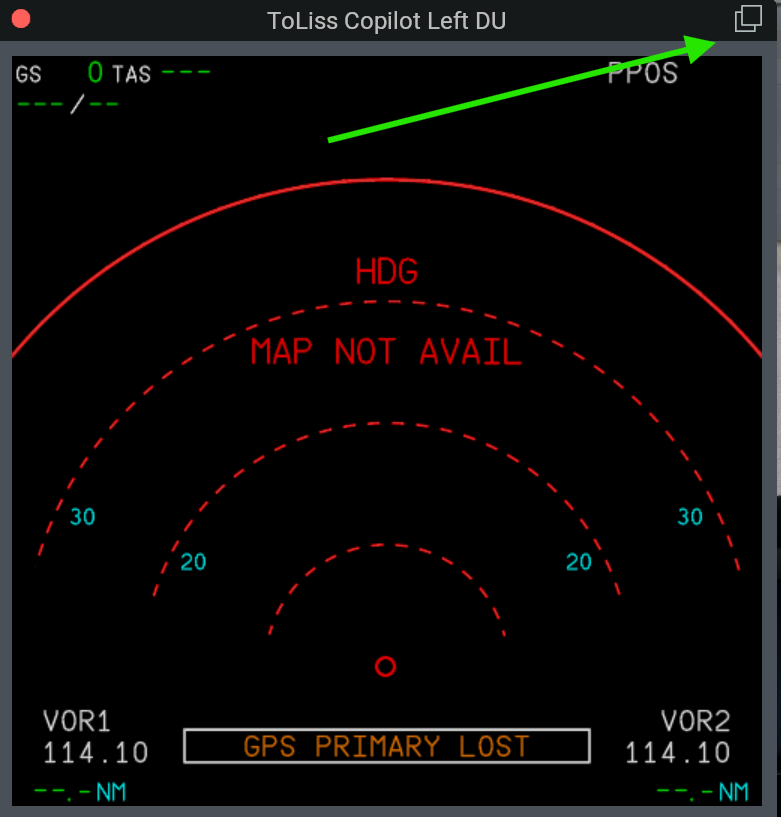
3. (When you start using the Streaming feature) Move the mouse over the screen you want to stream, such as PFD or ND. Left-click to open a pop-up window. In the pop-up window, click the icon in the top-right corner to convert it into a Windows window. At this point, SimFly Linker can capture this window and start streaming the video to SimFly Pad.
{% hint style="warning" %}
If you pop out multiple screens and one of them shows a black image, this is a known issue that may occur on NVIDIA 50-series GPUs. You can work around it by enabling the **Zink** option in the X-Plane settings.
{% endhint %}