> For the complete documentation index, see [llms.txt](https://docs.simflypad.com/v1/llms.txt). Markdown versions of documentation pages are available by appending `.md` to page URLs; this page is available as [Markdown](https://docs.simflypad.com/v1/feature-guides/use-multiple-windows-on-windows.md).

# Use Multiple Windows on Windows

SimFly Pad for Windows can run several windows at the same time, each showing a different view of the same aircraft. The Window Manager lets you open, place and size those windows from one place, and

{% hint style="info" %}
This feature is only available in **SimFly Pad for Windows** (4.8.5 or later). It is not available on iOS or Android.
{% endhint %}

## What it does <a href="#what-it-does" id="what-it-does"></a>

You can start SimFly Pad for Windows more than once. The Window Manager lets you control all of these windows from one place:

* Open additional SimFly Pad windows with one click. Each window shows one view of the current aircraft (for example OVHD in one window and FWD in another).
* Move and resize every window from a single list, with exact pixel values, or fill a display with one click.
* Show or hide the native title bar per window, lock panning/zooming, or hide the in‑app UI so that only the panel is visible.
* Save the whole arrangement as a **layout** and restore it later, or launch it with one click and connect every window to SimFly Linker.

A typical use is one aircraft spread over two or three monitors, or one large screen split into independent areas. If you only want several panels on a single screen, a custom view in a single window is usually simpler — see [Customize the Cockpit Control Panel](/v1/feature-guides/customize-the-cockpit-control-panel.md).

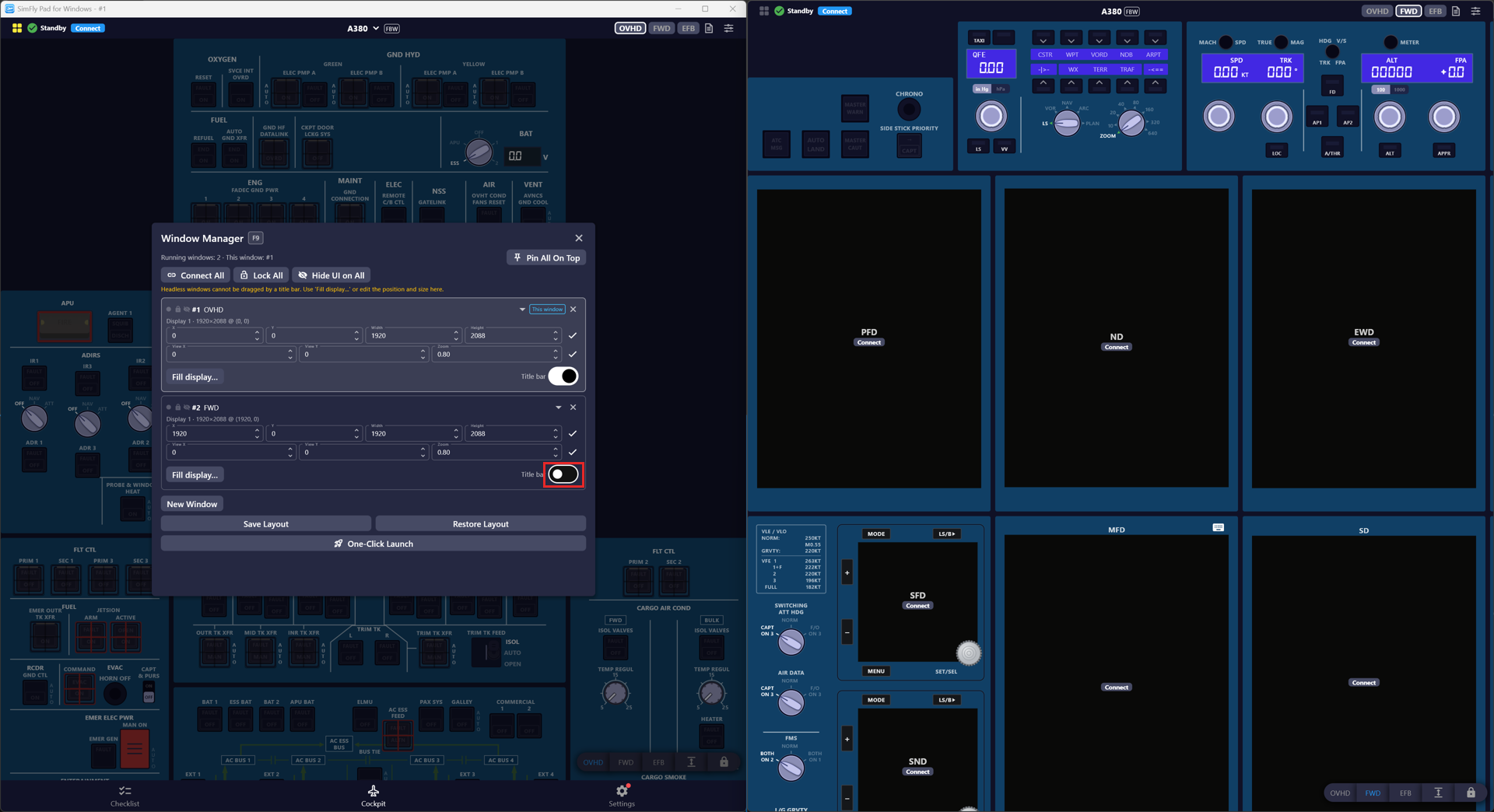
<figure><img src="https://3993220050-files.gitbook.io/~/files/v0/b/gitbook-x-prod.appspot.com/o/spaces%2Fye7KwjYJcGxgIY43Vb57%2Fuploads%2Fgit-blob-cbdc34afff5832a168c8f222ecac7297f132a422%2Fwinmgr-two-windows.png?alt=media" alt=""><figcaption><p>Two SimFly Pad windows side by side: #1 shows the A380 OVHD (with the Window Manager open), #2 shows the FWD view.</p></figcaption></figure>

## Enable the Window Manager <a href="#enable" id="enable"></a>

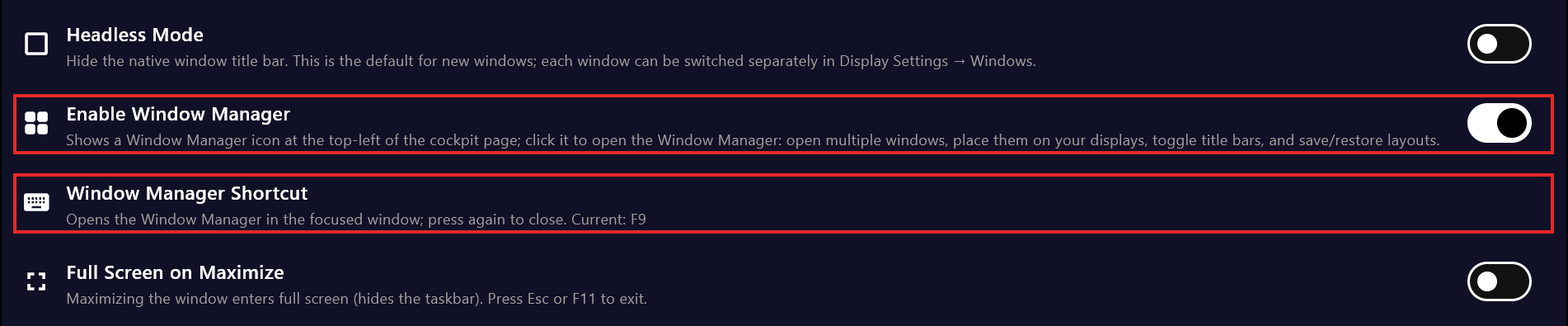
The Window Manager is off by default.

1. Go to the **Settings** page.
2. Turn on **Enable Window Manager**.
3. Optionally click **Window Manager Shortcut** to change the shortcut key. The default is **F9**. A shortcut must be an F key, or a key combined with Ctrl or Alt. Esc and F11 cannot be used.

<figure><img src="https://3993220050-files.gitbook.io/~/files/v0/b/gitbook-x-prod.appspot.com/o/spaces%2Fye7KwjYJcGxgIY43Vb57%2Fuploads%2Fgit-blob-821c9764c42f4893e9fe1412efaf9fb76c21e241%2Fwinmgr-settings.png?alt=media" alt=""><figcaption><p>Settings → Enable Window Manager and Window Manager Shortcut.</p></figcaption></figure>

{% hint style="info" %}
**Headless Mode** in Settings only sets the default for newly opened windows. Each window's title bar can be switched separately in the Window Manager.
{% endhint %}

## Open the Window Manager <a href="#open" id="open"></a>

On the **Cockpit** page, click the grid icon at the top‑left (next to the connection status), or press the shortcut key (F9 by default). Click the icon or press the key again to close it.

<figure><img src="https://3993220050-files.gitbook.io/~/files/v0/b/gitbook-x-prod.appspot.com/o/spaces%2Fye7KwjYJcGxgIY43Vb57%2Fuploads%2Fgit-blob-de9d8da1c53bf2e84d3b6a2e45be102b4f9cdf13%2Fwinmgr-entry-icon.png?alt=media" alt="" width="563"><figcaption><p>The Window Manager icon at the top‑left of the Cockpit page.</p></figcaption></figure>

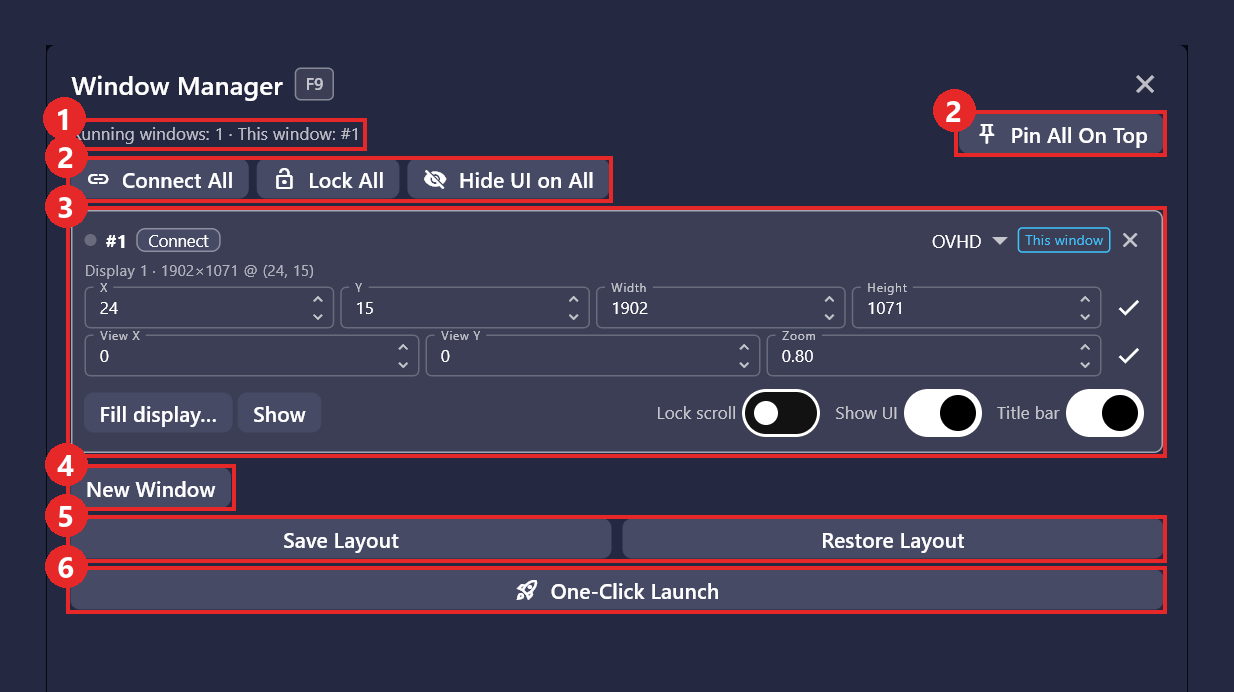
<figure><img src="https://3993220050-files.gitbook.io/~/files/v0/b/gitbook-x-prod.appspot.com/o/spaces%2Fye7KwjYJcGxgIY43Vb57%2Fuploads%2Fgit-blob-a18f696eabd353261f3e92ff2de163fde6bd1653%2Fwinmgr-manager.png?alt=media" alt="" width="563"><figcaption><p>The Window Manager with a single window running. The numbers refer to the list below.</p></figcaption></figure>

The dialog contains:

1. **Status line**: how many SimFly Pad windows are running and the number of this window.
2. **Connect All / Lock All / Hide UI on All / Pin All On Top**: actions that apply to all windows of the current aircraft (see [Actions for all windows](#all-windows)).
3. **Window list**: one row per running window (see [Arrange a window](#arrange)).
4. **New Window**: opens another window (see [Open more windows](#new-window)).
5. **Save Layout** and **Restore Layout** (see [Save a layout](#save-layout) and [Restore a layout](#restore-layout)).
6. **One-Click Launch** (see [One-Click Launch](#one-click-launch)).

## Open more windows <a href="#new-window" id="new-window"></a>

Click **New Window**. A new SimFly Pad window opens with the same aircraft, showing the first view that no window is currently showing. It appears slightly offset from the current window. The button spins until the new window shows up in the list.

<figure><img src="https://3993220050-files.gitbook.io/~/files/v0/b/gitbook-x-prod.appspot.com/o/spaces%2Fye7KwjYJcGxgIY43Vb57%2Fuploads%2Fgit-blob-f7fce34b748927e8de3808b965ed92392eff1d89%2Fwinmgr-manager-two-windows.png?alt=media" alt="" width="563"><figcaption><p>Two windows in the list. The row with the “This window” tag is the window you are looking at.</p></figcaption></figure>

Windows opened this way are **child windows** of the window that opened them (the **main window**):

* A child window only shows the Cockpit page. It has no bottom tab bar and no Settings page.
* Sign in, unlock panels and change settings in the main window. Child windows pick up the sign‑in state from the main window.
* Child windows follow the aircraft selected in the main window and cannot change the aircraft themselves.
* The Window Manager can only be opened in the main window. In a child window the grid icon is grey; clicking it (or pressing the shortcut) brings the main window to the front and opens the Window Manager there.

<div><figure><img src="https://3993220050-files.gitbook.io/~/files/v0/b/gitbook-x-prod.appspot.com/o/spaces%2Fye7KwjYJcGxgIY43Vb57%2Fuploads%2Fgit-blob-b1930285253a7a9faf40dbc92961e689491dc565%2Fwinmgr-child-icon.png?alt=media" alt="" width="563"><figcaption><p>In a child window the icon is grey.</p></figcaption></figure> <figure><img src="https://3993220050-files.gitbook.io/~/files/v0/b/gitbook-x-prod.appspot.com/o/spaces%2Fye7KwjYJcGxgIY43Vb57%2Fuploads%2Fgit-blob-5361f8db79088e0520c7447a326c7d88c2864324%2Fwinmgr-child-hint.png?alt=media" alt="" width="375"><figcaption><p>Clicking it opens the Window Manager in the main window instead.</p></figcaption></figure></div>

## Arrange a window <a href="#arrange" id="arrange"></a>

Each row in the list controls one window.

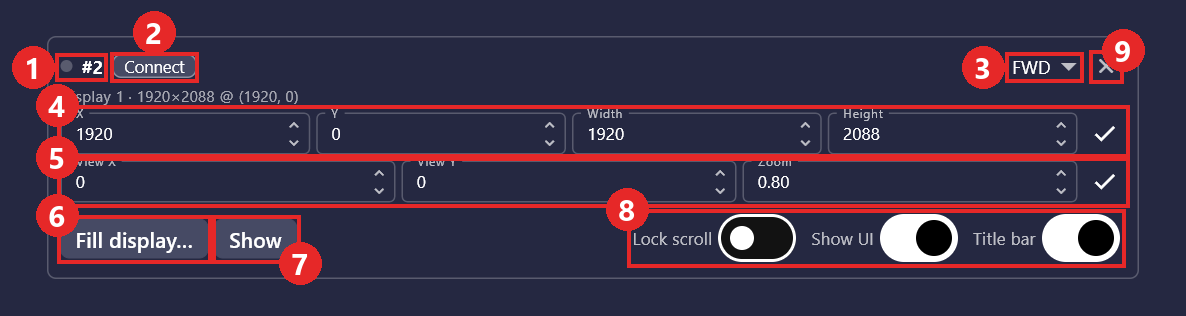
<figure><img src="https://3993220050-files.gitbook.io/~/files/v0/b/gitbook-x-prod.appspot.com/o/spaces%2Fye7KwjYJcGxgIY43Vb57%2Fuploads%2Fgit-blob-fc09c317bcf1c204f981fb299ac853c3d93bdf63%2Fwinmgr-window-row.png?alt=media" alt=""><figcaption><p>One row of the window list. The numbers refer to the list below.</p></figcaption></figure>

1. **Connection dot and window number**: the dot is green when the window is connected to SimFly Linker.
2. **Connect**: connects this window to SimFly Linker. You only see this button on a cockpit window of the current aircraft that is not connected yet. It is disabled when the aircraft's panels are not unlocked.
3. **View dropdown** (at the right of the row): switch the view shown in that window. It only lists views; child windows always stay on the Cockpit page.
4. **X / Y / Width / Height**: the window's position and size on screen, in physical pixels (the same values as in the Windows display settings). Click a field, type a value and press Enter. You can also drag left or right on the field, or use the small arrows. The minimum size is 320×240. The text above the fields shows which display the window is on.
5. **View X / View Y / Zoom**: which part of the view is shown in the window, and at what zoom. Use these when you want each window to show a different part of a large view.
6. **Fill display…**: resize the window to fill a display (the taskbar area is excluded). With more than one display, you are asked which one.
7. **Show**: brings the window to the front (restoring it first if it is minimized). Use it when the window is hidden behind other windows.
8. **Lock scroll / Show UI / Title bar**: switches for this window only. **Lock scroll** and **Show UI** do the same as **Lock All** and **Hide UI on All** (see [Actions for all windows](#all-windows)), but only for this window. They are only shown for cockpit windows. **Title bar** shows or hides the native Windows title bar. The outer size of the window does not change.
9. **×**: close that window. Closing the window you are in asks for confirmation, because the Window Manager closes with it.

Click an empty part of a row to **identify** the window: its border flashes three times. This helps when several windows look alike or have no title bar.

{% hint style="warning" %}
A window without a title bar cannot be dragged or resized with the mouse. Use **Fill display…** or edit its position and size in the Window Manager. It also has no close button — close it with the **×** in its row.
{% endhint %}

<figure><img src="https://3993220050-files.gitbook.io/~/files/v0/b/gitbook-x-prod.appspot.com/o/spaces%2Fye7KwjYJcGxgIY43Vb57%2Fuploads%2Fgit-blob-995b6983d0292894fb46734cfc1dd8b29b38416a%2Fwinmgr-headless.png?alt=media" alt=""><figcaption><p>Window #2 with the title bar turned off.</p></figcaption></figure>

## Actions for all windows <a href="#all-windows" id="all-windows"></a>

The buttons under the status line apply to every running window of the current aircraft:

* **Connect All**: connects every cockpit window that is not yet connected to SimFly Linker. The button is disabled when the aircraft's panels are not unlocked.
* **Lock All / Unlock All**: the same as the lock button at the bottom‑right of the Cockpit page — prevents accidental panning and zooming.
* **Hide UI on All / Show UI on All**: hides the top bar, the view bar and the resize handle so that only the panel remains. Combined with **Title bar** off, the window shows nothing but the panel.
* **Pin All On Top / Unpin All**: keeps every window above other applications.

<figure><img src="https://3993220050-files.gitbook.io/~/files/v0/b/gitbook-x-prod.appspot.com/o/spaces%2Fye7KwjYJcGxgIY43Vb57%2Fuploads%2Fgit-blob-acbd4e7ebfecbfee091965574eedc8d532d9f66f%2Fwinmgr-hide-ui.png?alt=media" alt=""><figcaption><p>Hide UI on All: both windows show only the panel. Window #2 also has its title bar off.</p></figcaption></figure>

{% hint style="info" %}
After **Hide UI**, the grid icon is hidden as well. Press the shortcut key (F9 by default) in the main window to open the Window Manager, then click **Show UI on All**.
{% endhint %}

## Save a layout <a href="#save-layout" id="save-layout"></a>

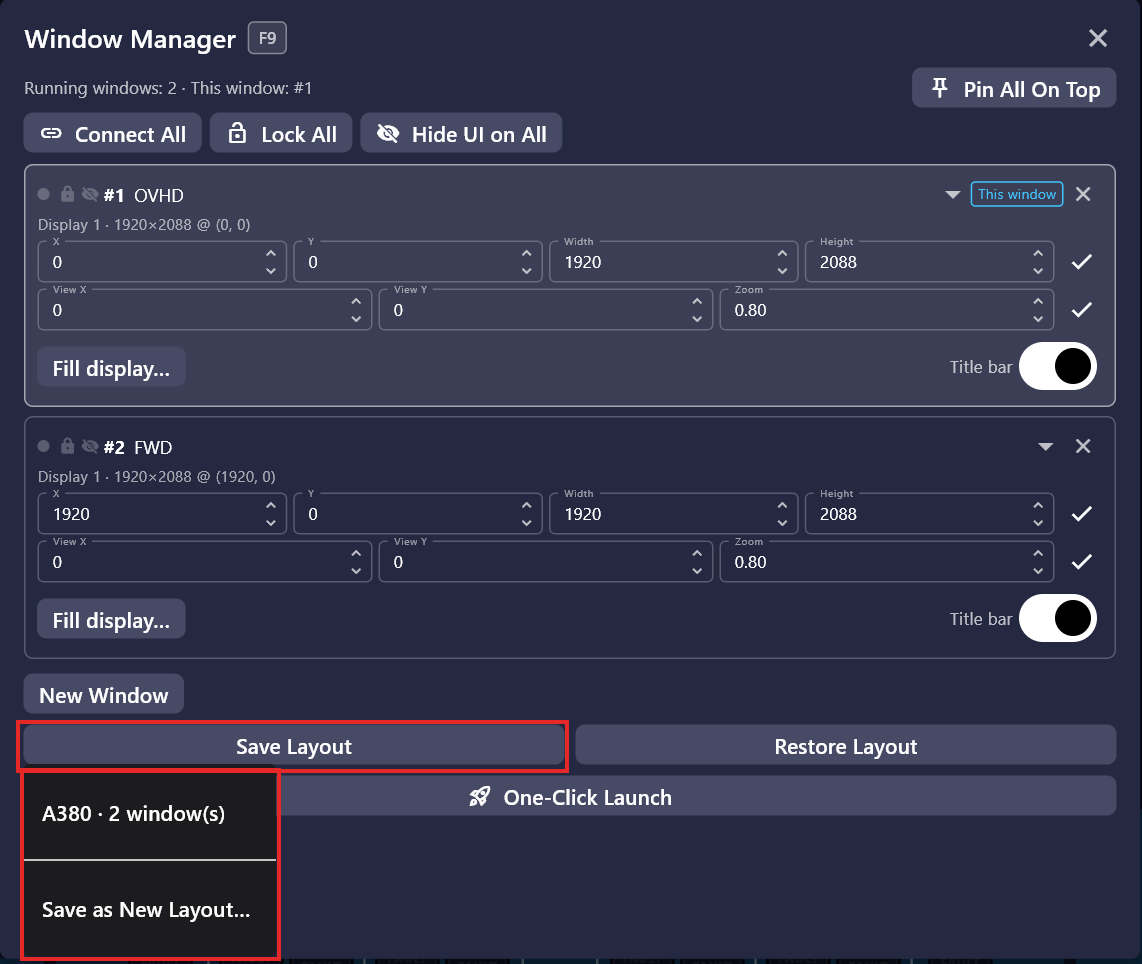
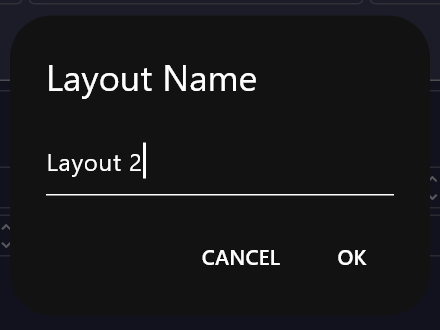
Once the windows are arranged, click **Save Layout**. Pick an existing layout to overwrite it, or choose **Save as New Layout…** and enter a name.

<div><figure><img src="https://3993220050-files.gitbook.io/~/files/v0/b/gitbook-x-prod.appspot.com/o/spaces%2Fye7KwjYJcGxgIY43Vb57%2Fuploads%2Fgit-blob-97bc68ee5f4aa3508969c23866890091226e918b%2Fwinmgr-save-layout.png?alt=media" alt="" width="563"><figcaption><p>Save Layout: overwrite an existing layout or save a new one.</p></figcaption></figure> <figure><img src="https://3993220050-files.gitbook.io/~/files/v0/b/gitbook-x-prod.appspot.com/o/spaces%2Fye7KwjYJcGxgIY43Vb57%2Fuploads%2Fgit-blob-7911a7df54d5d3aaf9de96960766b7af8e80258a%2Fwinmgr-layout-name.png?alt=media" alt="" width="375"><figcaption><p>Name the new layout.</p></figcaption></figure></div>

A layout belongs to one aircraft. For every running window, it saves the page or view, the position and size, the title bar, pinned, locked and hidden‑UI state, and the view offset and zoom. All running windows must show the same aircraft. If they do not, the button is disabled and tells you which window is different.

## Restore a layout <a href="#restore-layout" id="restore-layout"></a>

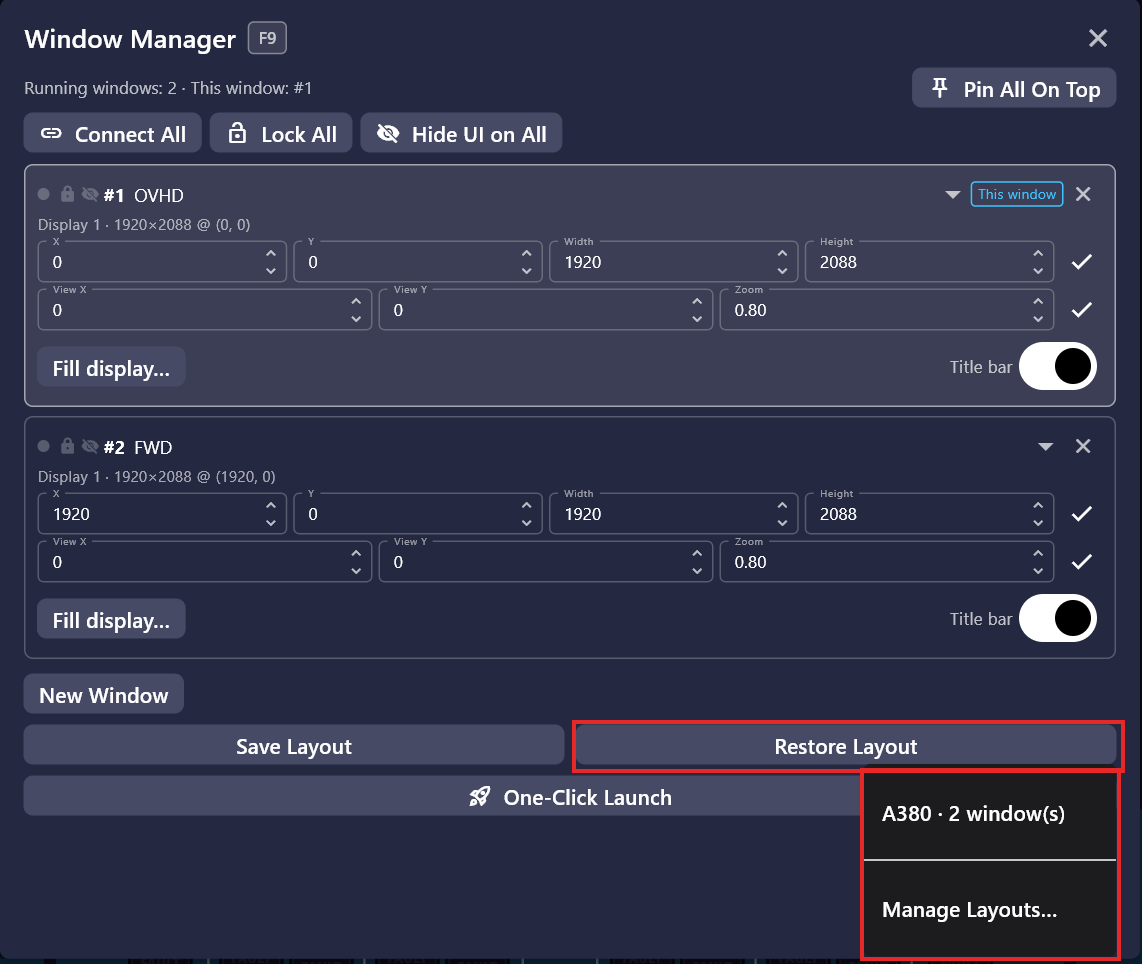
Click **Restore Layout** and pick a layout of the current aircraft. SimFly Pad moves the running windows into place, starting with the window you are in. If the layout has more windows than are running, SimFly Pad opens the missing ones. Windows that are not part of the layout stay where they are.

**Manage Layouts…** at the end of the list lets you rename or delete layouts.

<div><figure><img src="https://3993220050-files.gitbook.io/~/files/v0/b/gitbook-x-prod.appspot.com/o/spaces%2Fye7KwjYJcGxgIY43Vb57%2Fuploads%2Fgit-blob-6bbc0d8bac1be472161200707d2159f1339f0add%2Fwinmgr-restore-layout.png?alt=media" alt="" width="563"><figcaption><p>Restore Layout lists the layouts of the current aircraft.</p></figcaption></figure> <figure><img src="https://3993220050-files.gitbook.io/~/files/v0/b/gitbook-x-prod.appspot.com/o/spaces%2Fye7KwjYJcGxgIY43Vb57%2Fuploads%2Fgit-blob-bab6fa86cb83fe2e00ffa9b9ad4b7965d2cfc002%2Fwinmgr-manage-layouts.png?alt=media" alt="" width="375"><figcaption><p>Manage Layouts: rename or delete.</p></figcaption></figure></div>

{% hint style="info" %}
Layouts are not restored automatically when SimFly Pad starts. Use **Restore Layout** or **One-Click Launch**.
{% endhint %}

## One-Click Launch <a href="#one-click-launch" id="one-click-launch"></a>

**One-Click Launch** lists the layouts of the current aircraft. Choosing one:

1. switches every running window that shows a different aircraft to this aircraft,
2. arranges the windows as saved (opening missing ones), and
3. connects every window to SimFly Linker.

SimFly Linker must already be running. A window that does not find SimFly Linker within 20 seconds shows a message and can be connected manually.

<figure><img src="https://3993220050-files.gitbook.io/~/files/v0/b/gitbook-x-prod.appspot.com/o/spaces%2Fye7KwjYJcGxgIY43Vb57%2Fuploads%2Fgit-blob-08733282071db2aaa052c119e5fe14635e965276%2Fwinmgr-one-click-launch.png?alt=media" alt="" width="563"><figcaption><p>One-Click Launch lists the layouts of the current aircraft.</p></figcaption></figure>

## Close windows <a href="#close" id="close"></a>

* Close a child window with its title bar **×**, or with the **×** in its row in the Window Manager.
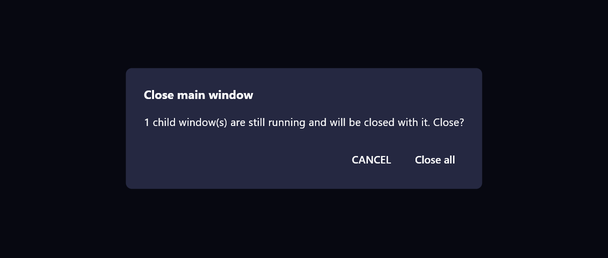
* Closing the main window while child windows are still running shows a prompt: **Cancel** or **Close all**. Child windows cannot run without the main window, so they close together with it. If the main window stops unexpectedly, the child windows close themselves within a few seconds.

<figure><img src="https://3993220050-files.gitbook.io/~/files/v0/b/gitbook-x-prod.appspot.com/o/spaces%2Fye7KwjYJcGxgIY43Vb57%2Fuploads%2Fgit-blob-816b973fb5a0a47e5ea8af7f63d22a12d255c17e%2Fwinmgr-close-main.png?alt=media" alt="" width="375"><figcaption><p>Closing the main window while child windows are running.</p></figcaption></figure>

## Things to know <a href="#things-to-know" id="things-to-know"></a>

* **One main window at a time.** Only the main window can open the Window Manager and manage the other windows. If you start SimFly Pad again by double‑clicking it, that window is not listed. The status line only counts it. Its grid icon is grey, and clicking it only brings the main window to the front.
* **Same aircraft when connected.** SimFly Linker works with one aircraft at a time, so all windows connected to it at the same time must show the same aircraft.
* **Memory.** Every window is a separate process and uses its own memory.
* **Layouts and displays.** Positions are saved in physical pixels. If a saved position is outside your current displays (for example after unplugging a monitor), the window keeps its size and is centered on the primary display instead.
* **Overlapping windows** are not a supported arrangement: the front/back order is not saved in a layout.
* **Settings** such as the shortcut key or the default title bar mode are read when a window starts. Windows that are already open pick them up after they are restarted.