> For the complete documentation index, see [llms.txt](https://docs.simflypad.com/v1/llms.txt). Markdown versions of documentation pages are available by appending `.md` to page URLs; this page is available as [Markdown](https://docs.simflypad.com/v1/troubleshooting/streaming-screen-issues.md).
# Streaming Screen Issues
Troubleshoot black screens, unstable network warnings, and latency issues when streaming simulator windows to SimFly Pad.
If the window can already pop out and streaming starts, but the image turns black, becomes unstable, or feels delayed, use this page.
If you cannot pop out the window at all, see [Can’t Pop Up Windows](/v1/troubleshooting/cant-pop-up-windows.md).
{% hint style="info" %}
If you have enabled **MSFS Direct Capture** or **X-Plane Direct Capture** (Alpha features in the **Streaming** section of the Settings page of SimFly Linker) and the image looks wrong, the stream fails to start, or the simulator crashes, first uncheck the option to switch back to the legacy pop-out window capture, then continue troubleshooting. Please also contact us with the aircraft and panel information so we can improve the feature. Problems specific to these modes are listed in [Direct Capture issues](#direct-capture-issues) at the bottom of this page.
{% endhint %}
## After starting the stream, the image displayed for one second and then went black. (iOS shows “unstable network,” while Android shows “FPS: 0.”)
This issue is still under investigation. So far, it has mainly been observed on a small number of PCs with multiple monitors or specific NVIDIA drivers.
Try the following fixes in order:
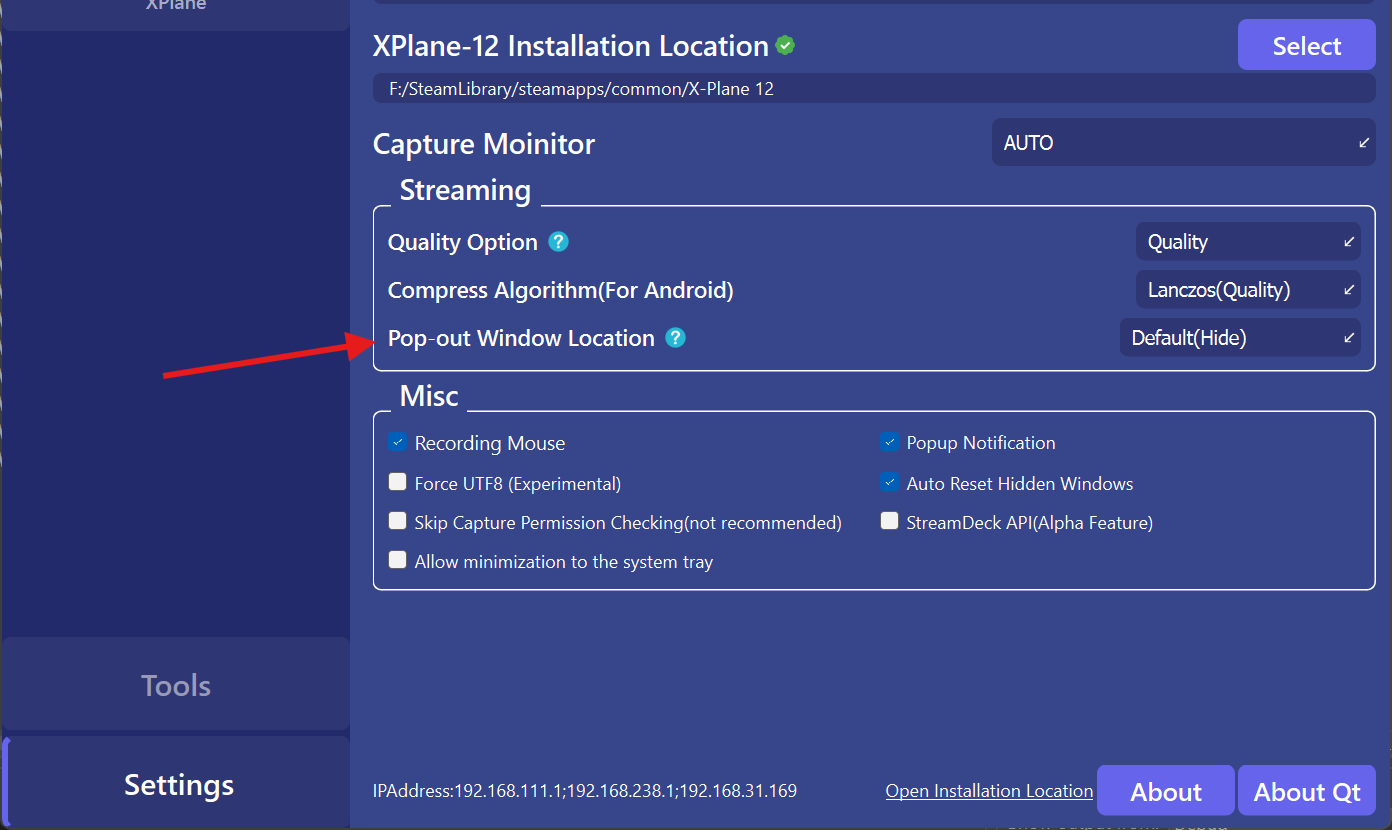
1. Change **Pop Out Window Location** in SimFly Linker.
* **Hidden by default**
* **Move the popup window to a virtual monitor**
* **Do not hide**
2. If you use a virtual monitor workflow, confirm the virtual monitor has already been added in SimFly Linker.
3. If you are using a laptop with an external monitor, try pressing ALT+P to exit extended display mode.
4. If you have multiple monitors, try temporarily disabling one monitor in the system display settings.
5. Try a different graphics driver version.
{% hint style="info" %}
If you are using MSFS Pop Out Panel Manager together with SimFly Linker, setting **Pop Out Window Location** to **"Don't Hide"** can help avoid positioning conflicts.
{% endhint %}
If the problem still persists, please contact us and include your graphics card model, driver version, and Windows version.
## \[X-Plane / ToLiss] One of multiple popped-out screens shows a black image
When flying a ToLiss aircraft, if you pop out multiple screens at the same time and one of them shows a black image, this is a known issue that may occur on NVIDIA 50-series GPUs — on these GPUs, only the last popped-out window may display an image.
Workaround: enable the **Zink** option in the X-Plane settings.
Alternatively, with SimFly Linker 4.8.2 or later you can enable [X-Plane Direct Capture](/v1/feature-guides/stream-screens-to-simfly-pad.md#x-plane-direct-capture): supported ToLiss screens are then captured without any pop-out window, so this issue does not occur.
## “Unstable network” appears after 1-3 minutes of streaming.
{% hint style="warning" %}
This issue is different from the black-screen-at-start problem above. Here, the stream works first and becomes unstable only after 1-3 minutes.
{% endhint %}
We have received feedback from a very small number of users experiencing this issue. Their final solution was to replace the 4 memory sticks they were using (4x16GB) with 2 memory sticks, which resolved the problem.
## Streaming image stuttering or high latency
For iOS and Android versions, the streaming strategy is different.
{% hint style="info" %}
On iOS, streaming does not compress the image, so bandwidth requirements are higher. Streaming a single G1000 screen usually needs around 30\~50Mb bandwidth. We strongly recommend connecting the SimFly Pad device to a 5G Wi-Fi network.
{% endhint %}
{% hint style="info" %}
On Android, the streamed image is compressed, so network requirements are lower. However, compression happens on the PC side and consumes some CPU resources.
If you are using an NVIDIA graphics card, you can change the Viden Encode option to **GPU** in SimFly Linker to reduce CPU usage.
{% endhint %}
Regardless of platform, a 5G Wi-Fi connection is strongly recommended because it usually provides lower latency and a more stable connection than 2.4G Wi-Fi.
## \[iOS] Connection broken after a few minutes
It has been reported that on some iOS devices, AirDrop can monopolize Wi-Fi bandwidth and cause other connections to drop.
You can try:
* Turning off AirDrop and Bluetooth on the iOS device.
* Logging in to your router’s management page and changing the Wi-Fi channel.
## Direct Capture issues
These apply only when **MSFS Direct Capture** (MSFS 2024) or **X-Plane Direct Capture** (X-Plane 12) is enabled in the **Streaming** section of the Settings page. See [Stream Screens to SimFly Pad](/v1/feature-guides/stream-screens-to-simfly-pad.md#dx12-direct-capture) for the full description of both features.
### \[MSFS 2024] SimFly Pad still shows "Waiting for the window to pop up"
The stream has fallen back to the legacy pop-out window capture. Check, in order:
1. You are running **MSFS 2024**, and it is rendering in **DirectX 12** mode (MSFS 2020 and DX11 mode are not supported).
2. The screen is listed in the **MSFS Direct Capture - Supported Panels** dialog (click **View list** on the MSFS Direct Capture card).
3. Disconnect and reconnect the screen from SimFly Pad — screens that were already streaming when you enabled the option keep using the old mode.
### \[MSFS 2024] Warning when clicking START: "a resource MSFS Direct Capture needs is occupied by another program"
A third-party program is holding a resource that glass cockpit capture needs, so panels may fail to be captured. This is usually left over from the previous MSFS session. Close the program listed in the message and click START again. If the message says the holder is a zombie process, restart the PC.
### \[MSFS 2024] Flicker, tearing, or small black blocks on the streamed panel
Turn on **Synchronized copy (reduces flicker)** on the MSFS Direct Capture card, then reconnect the screen. Capture is then fixed at 30 FPS with slightly higher GPU load.
### \[X-Plane 12] SimFly Pad still shows "Waiting for the window to pop up"
The stream has fallen back to the legacy pop-out window capture. Check, in order:
1. **Enable** is checked on the **X-Plane Direct Capture** card.
2. The SimFly XPConnector plugin is **0.9.0 or later** (see the **Cockpit Controls (X-Plane)** page), and X-Plane was restarted after the plugin was upgraded.
3. The aircraft is supported (ToLiss A319/A320/A321, A330-900, A340-600, FlightFactor 757/767) and the screen is not a touch screen (EFB / ISCS) or the ISIS — those still use pop-out windows.
4. You connected right after loading into the cockpit. The plugin needs a moment after loading; disconnect and reconnect the screen.
### \[X-Plane 12] Image frozen after switching aircraft, or the image is black
* If you changed aircraft while a screen was streaming, the stream may stay on the last frame — disconnect and reconnect the screen from SimFly Pad.
* Direct capture shows exactly what the aircraft draws on its display. If the display unit is powered off or its brightness is turned all the way down, the stream is black or dark too.
* On the FlightFactor 757 / 767, only the cockpit variant currently selected in the aircraft (original EADI / EHSI, or upgraded PFD / ND) renders an image. Choose the matching panel in SimFly Pad.